
Contact Blaster Campaigns & Groups – FAQ
1. What is Contact Blaster?
Contact Blaster is an email marketing tool that allows you to organize contacts into groups and send targeted email campaigns to those groups.
It helps you segment your contact list so your marketing emails reach the most relevant audience.
2. Where can I find Contact Blaster in the system?
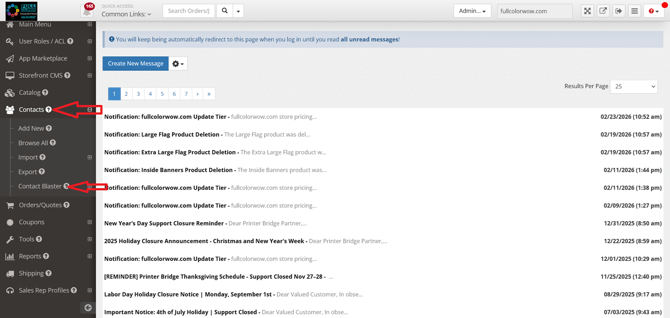
Contact Blaster features are located in the Contacts menu. The following links are available:
-
Campaigns
-
Campaign Schedule
-
Create Campaign
-
Contact Groups
These options allow you to organize contacts and manage email marketing campaigns.
3. What are Contact Groups?
Contact Groups allow you to organize contacts into segments for targeted email marketing.
For example, you might create groups such as:
-
Leads
-
Customers
-
Industry-specific contacts
-
Sales rep contacts
Segmenting contacts improves the effectiveness of your email campaigns.
4. How do I create a Contact Group?
To create a new group:
-
Click Contact Groups in the Contacts menu.
-
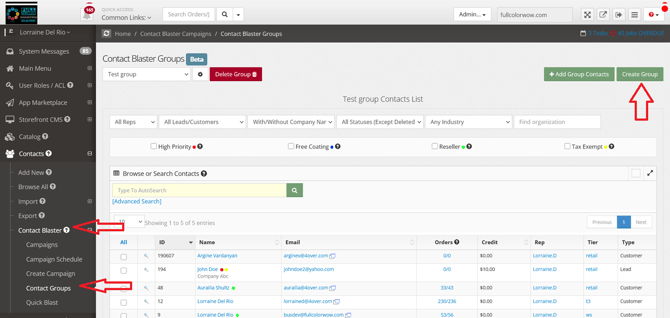
Select Create Contact Group.7
-
Enter the group details.
-
Save the group.
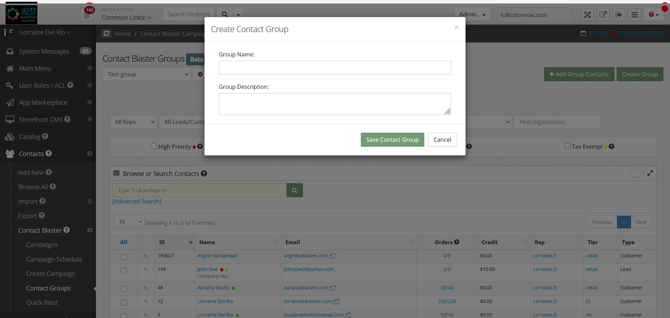
After saving, the new group will automatically become the active group on the Contact Blaster Group page.
5. Is there a limit to how many groups I can create?
No. There is no limit to the number of contact groups you can create.
You can create as many groups as needed to support your marketing goals.
6. How do I switch between groups?
Use the Group Selection dropdown menu on the Contact Blaster Group page.
This allows you to select and modify different groups as needed.
7. How do I add contacts to a group?
To add contacts:
-
Click Add Group Contacts.
-
A list of all contacts in your system will appear.
-
Use filters or the search bar to find specific contacts.
-
Select contacts using the checkbox next to their name.
-
Click Add Selected Contacts to Group.
The page will refresh and the selected contacts will appear in the group.
8. What filters can I use when selecting contacts?
You can filter contacts by:
-
Sales reps
-
Leads
-
Customers
-
Company name
-
CRM categories
-
Industry
You can also search for specific organizations or contacts using the search bar.
9. How do I add multiple contacts at once?
You can select multiple contacts by:
-
Checking individual contact boxes, or
-
Using the Select All checkbox to choose all contacts currently displayed.
Then click Add Selected Contacts to Group.
10. How do I remove contacts from a group?
Removing contacts is the reverse of adding them:
-
Select the contacts you want to remove.
-
Click the remove option.
The contacts will be removed from the selected group.
11. Why should I use contact groups for email marketing?
Contact groups allow you to:
-
Send targeted email campaigns
-
Improve email engagement
-
Deliver relevant content to the right audience
-
Organize your contacts more effectively
Segmented email marketing typically performs better than sending the same email to all contacts.