How do I add a custom product to my storefront?
Follow the steps below to insert and configure a custom product:
Important Notes
You are limited to 5 custom categories a month that Printer Bridge can add for you.
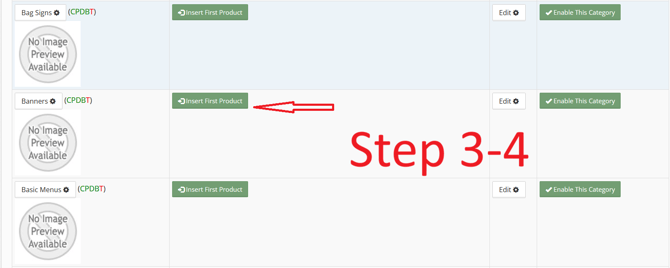
- You can only insert products into categories that do not have 4over products. The system will display “Insert First Product.”
If your product does not require a size selection (such as apparel), leave the size values set to 0.
Step-by-Step Instructions
-
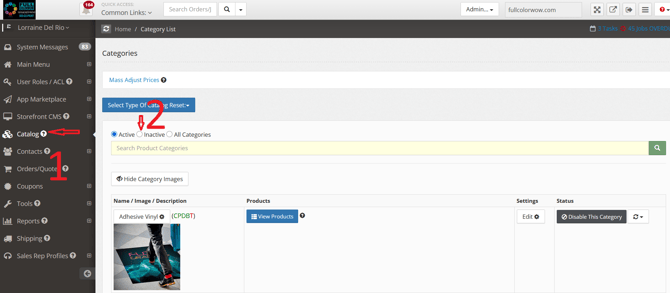
Click Catalog from the left-hand menu.
-
Select Inactive.
-
Choose the custom product that best fits your needs.
-
Click Insert First Product.
-
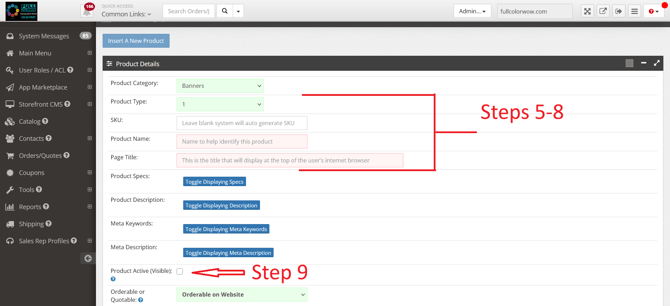
Set Product Type to Printing.
-
If applicable, enter your custom SKU in the SKU field.
-
Enter the product name in the Product Name section.
-
Enter the Page Title (this is what displays on the browser tab).
-
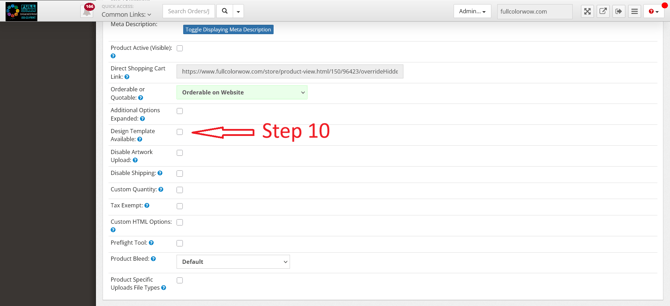
Check the box for Product Active (Visible).
-
If you have a predesigned template available for customers:
-
Click Design Template Available.
-
Click Choose a File to upload your template.
-
-
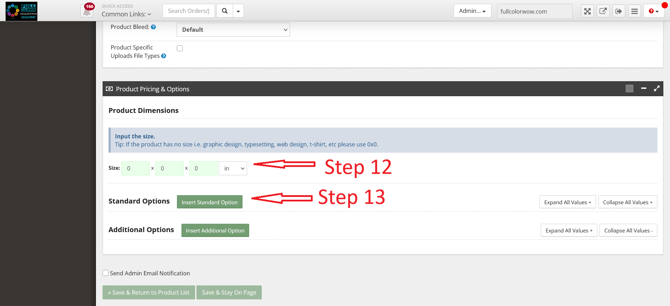
Under Production Dimensions, enter the size you want available to customers.
-
Click Insert Standard Option.
-
Note: “Quantity” will appear as the default option.
-
You may rename it on the right-hand side (for example, change “Quantity” to “Run Size”).
-
-
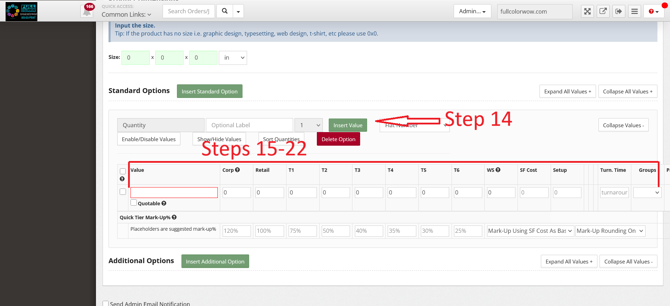
Click Insert Value under the Quantity section.
-
Enter the quantity you want displayed in your storefront.
-
Enter the pricing for that option.
-
Set Turn Around Time to 0.
-
Note: You can add additional turnaround time for individual values if needed.
-
-
Repeat Steps 12–16 to add more options or values.
-
If applicable, enter the storefront cost under SF Cost.
-
Enter the cutoff time for each value under Cutoff.
-
Orders placed after the cutoff will move to the next business day.
-
-
Enter the production start time under Prod. Time.
-
Enter the total turnaround time under Turn. Time:
-
Convert production days into hours.
-
Example: If production takes 5–7 days, use 7 days × 24 hours = 168 hours.
-
-
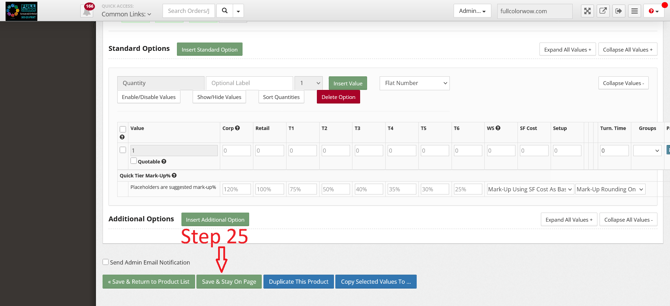
Click Save.
Once saved, the product will display in your storefront.
How do I create multiple sizes for the same product?
If you want to offer additional sizes:
-
Return to the custom product page you created.
-
Scroll to the bottom of the page.
-
Click Duplicate This Product.
-
Update the size, cost, turnaround time, or any other relevant fields.
-
Save your changes.
Tip: You can add or remove values at any time to better fit your storefront needs.