
1. How do I create a new email campaign?
Follow these steps:
Click Create Campaign or select Create Campaign from the Contact Blaster menu.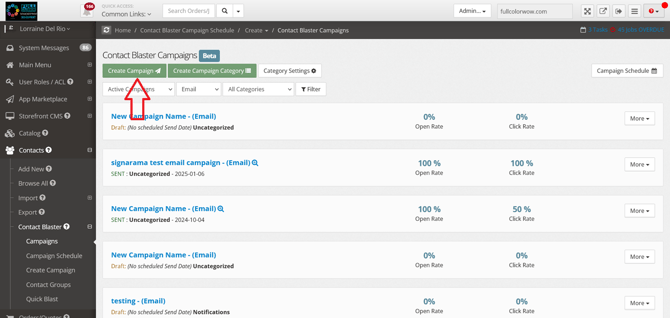
Choose Email as the campaign type.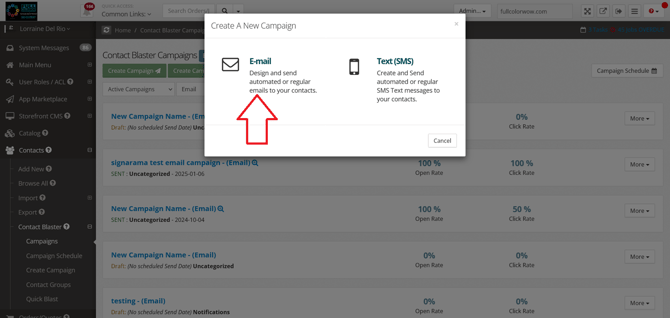
Enter a campaign title that clearly identifies the campaign.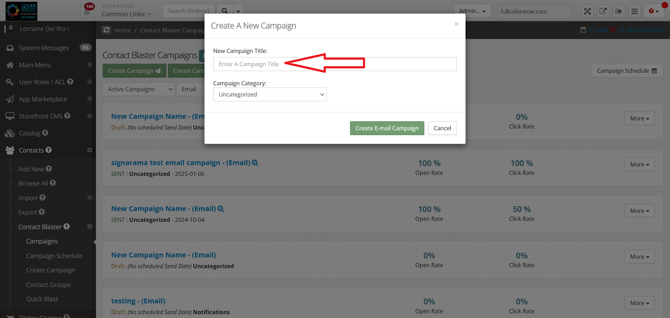
Select a category from the Categories dropdown.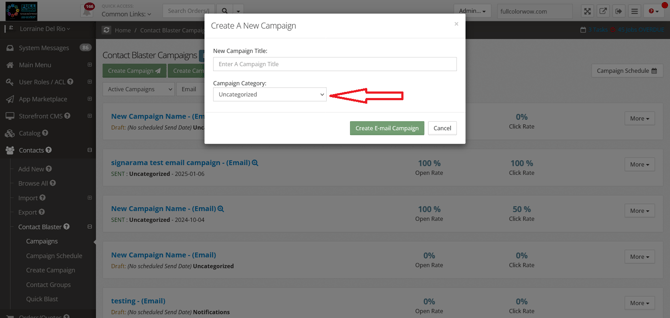
Click Create Campaign.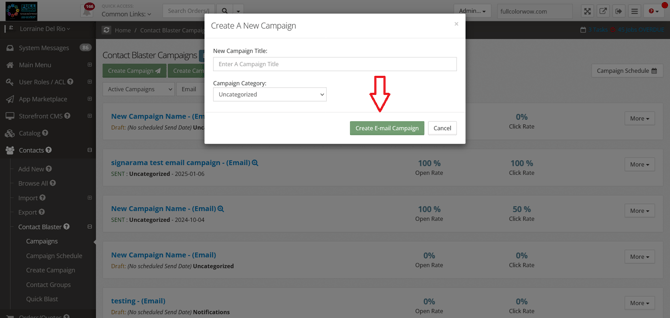
Tip: Use clear names such as “April Promo – Newsletter” so marketing team members can easily recognize the campaign later.
2. Can I change the campaign name or category later?
Yes.
While editing the campaign:
-
Use the controls at the top of the Compose Campaign screen.
-
Edit the campaign title or change the category.
Save your changes.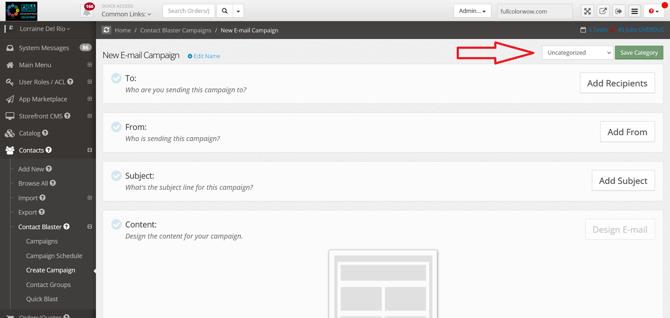
3. What are the steps to build an email campaign?
Creating an email campaign involves five main steps:
Add recipients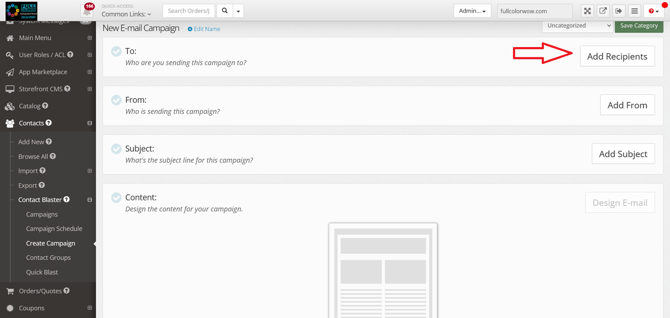
Set the sender (From details)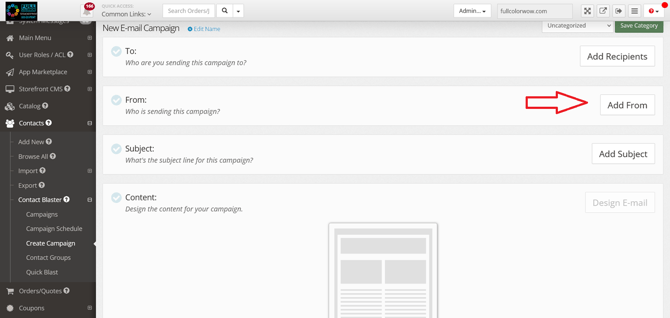
Create the subject line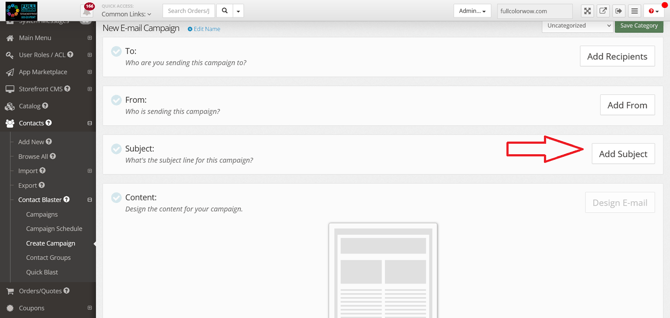
Design the email content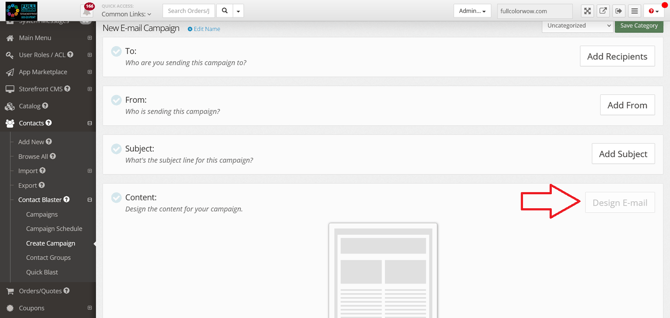
Schedule when the campaign will be sent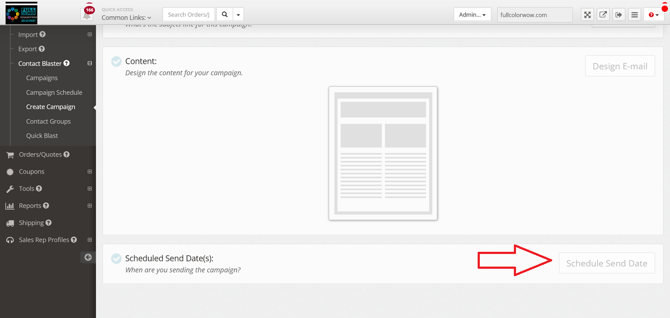
4. How do I add recipients to my campaign?
-
Click Add Recipients.
-
Select one of the following options:
-
Send to All Contacts
-
Send to specific contact groups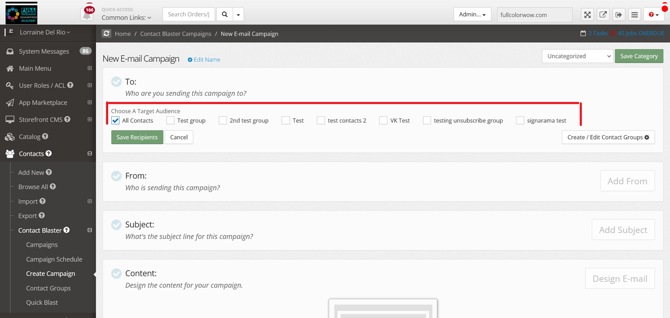
-
Check the boxes next to the desired groups.
If needed, click Create New Contact Group.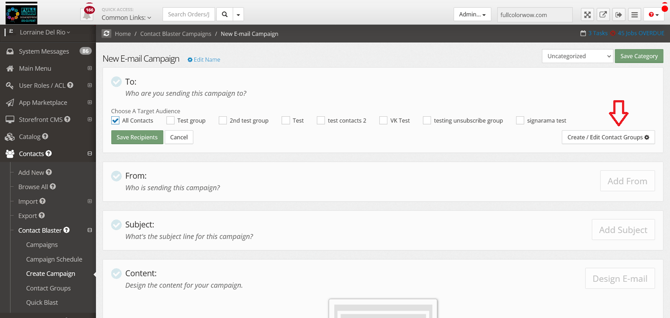
Click Save Recipients.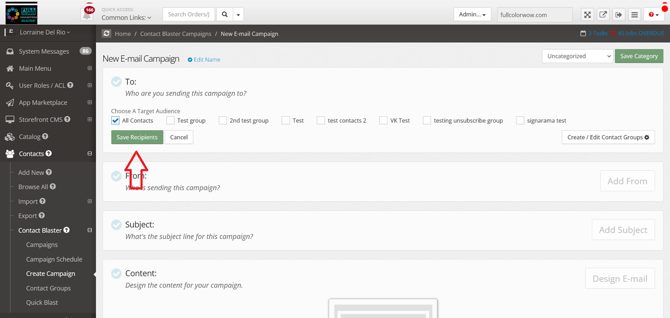
Tip: Using contact groups helps target specific audiences more effectively.
5. How do I set or change the sender information?
The From section controls how the email appears in your recipients’ inbox.
-
Enter the name (individual or company).
-
Confirm or edit the email address.
Click Save From.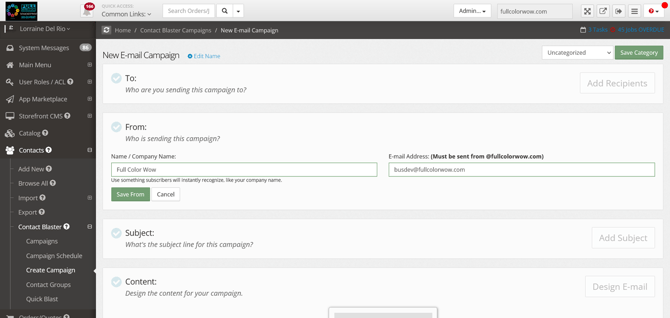
Important notes:
-
The email address must use your storefront’s main email domain.
-
Replies from recipients will be sent to this address.
6. How do I create a good subject line?
-
Type your subject line.
-
Add optional preview text.
Click Save Subject.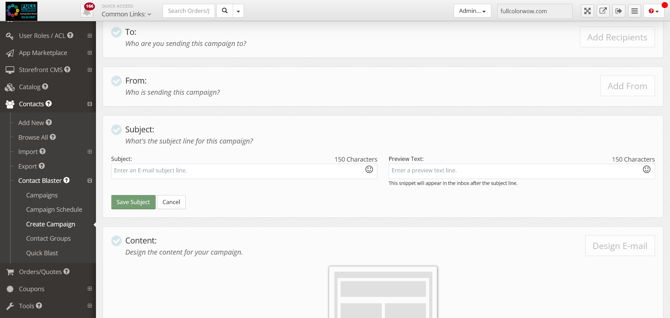
Tips for better open rates:
-
Keep subject lines clear and engaging.
-
Consider using emojis to attract attention.
-
Always test emojis first to ensure they display correctly in inboxes.
What is preview text?
Preview text is the short summary that appears after the subject line in an inbox. It helps give readers additional context about the email.
7. How do I create the email content?
Click Design Email to start building the body of your campaign.
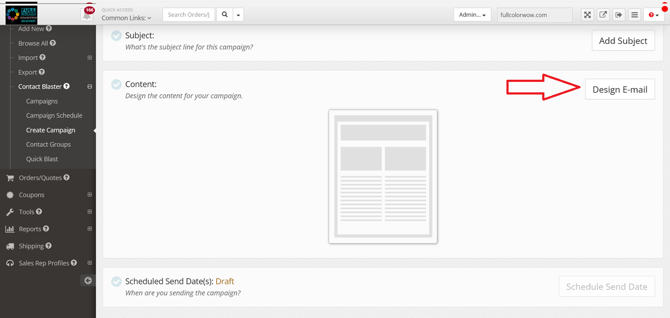
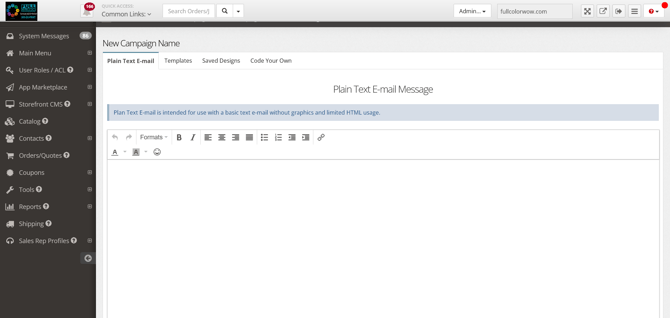
You will see four options for creating content:
1. Plain Text Email
Best for simple emails.
Features:
-
Basic formatting tools
-
Quick and simple composition
Important:
Always include a clear call-to-action (CTA) in marketing emails.
Click Save Plain Text Email when finished.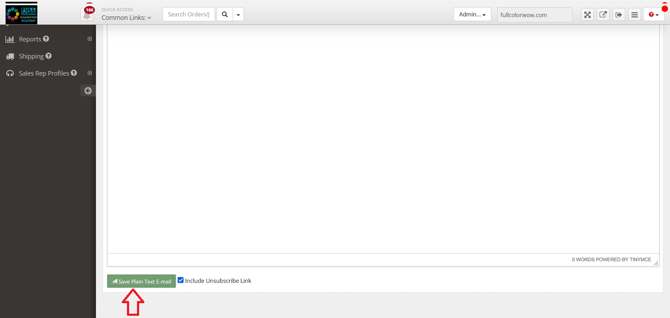
2. Templates
Pre-designed layouts you can customize.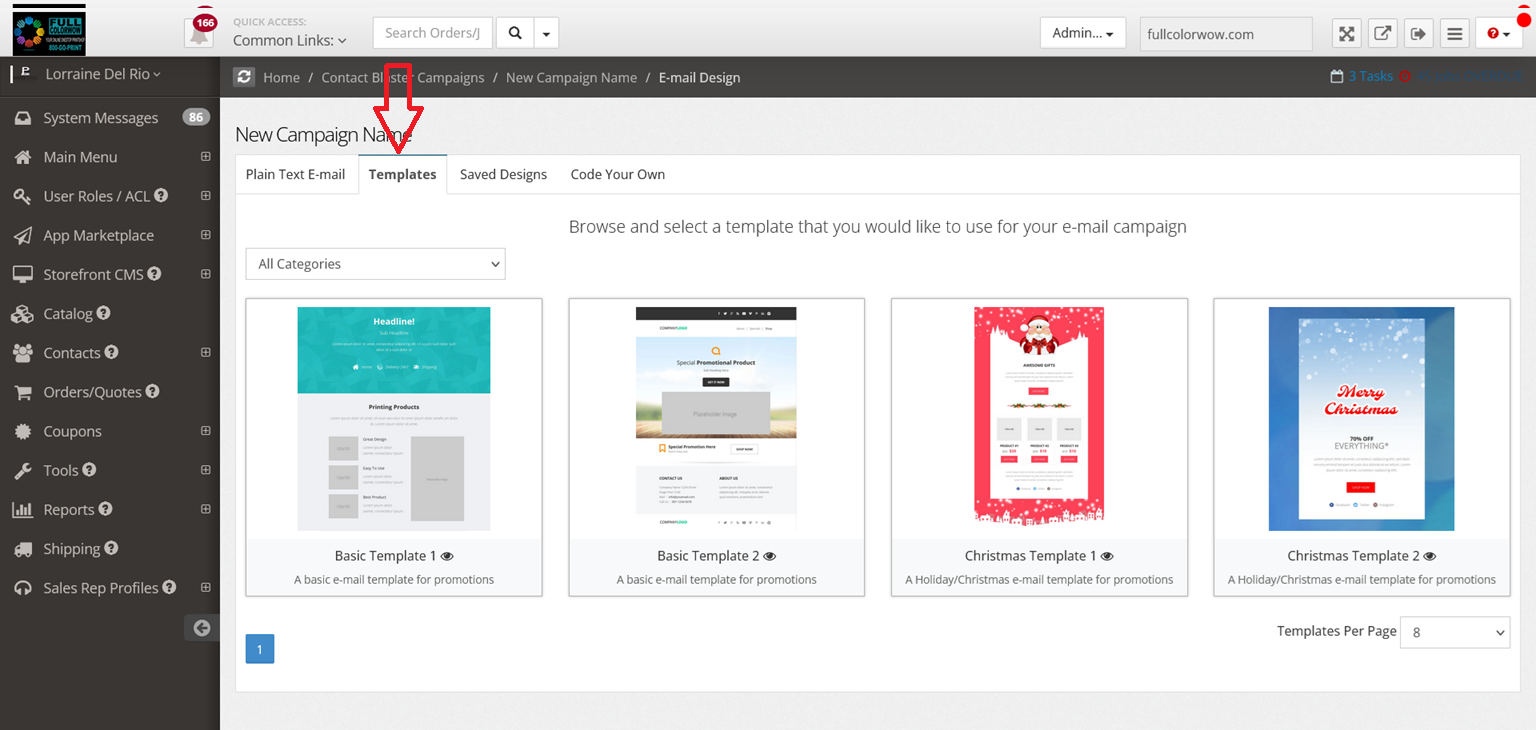
Steps:
-
Browse available templates.
-
Click a template thumbnail to preview it.
-
Click Use Template.
-
Customize the content.
3. Saved Designs
Displays email designs you previously created and saved.
You can reuse these designs for future campaigns.
4. Code Your Own
Advanced option for custom layouts.
Features:
-
Visual editor
-
Ability to edit HTML source code
Note: Email clients often support limited HTML, so avoid complex coding.
8. Should I include an unsubscribe link?
Yes.
Most email marketing laws require an unsubscribe option in promotional emails.
Unless you are certain your communication does not require it, leave the unsubscribe option enabled.
9. How do I preview or edit my email design later?
At the bottom of the email editor you can:
Return to Templates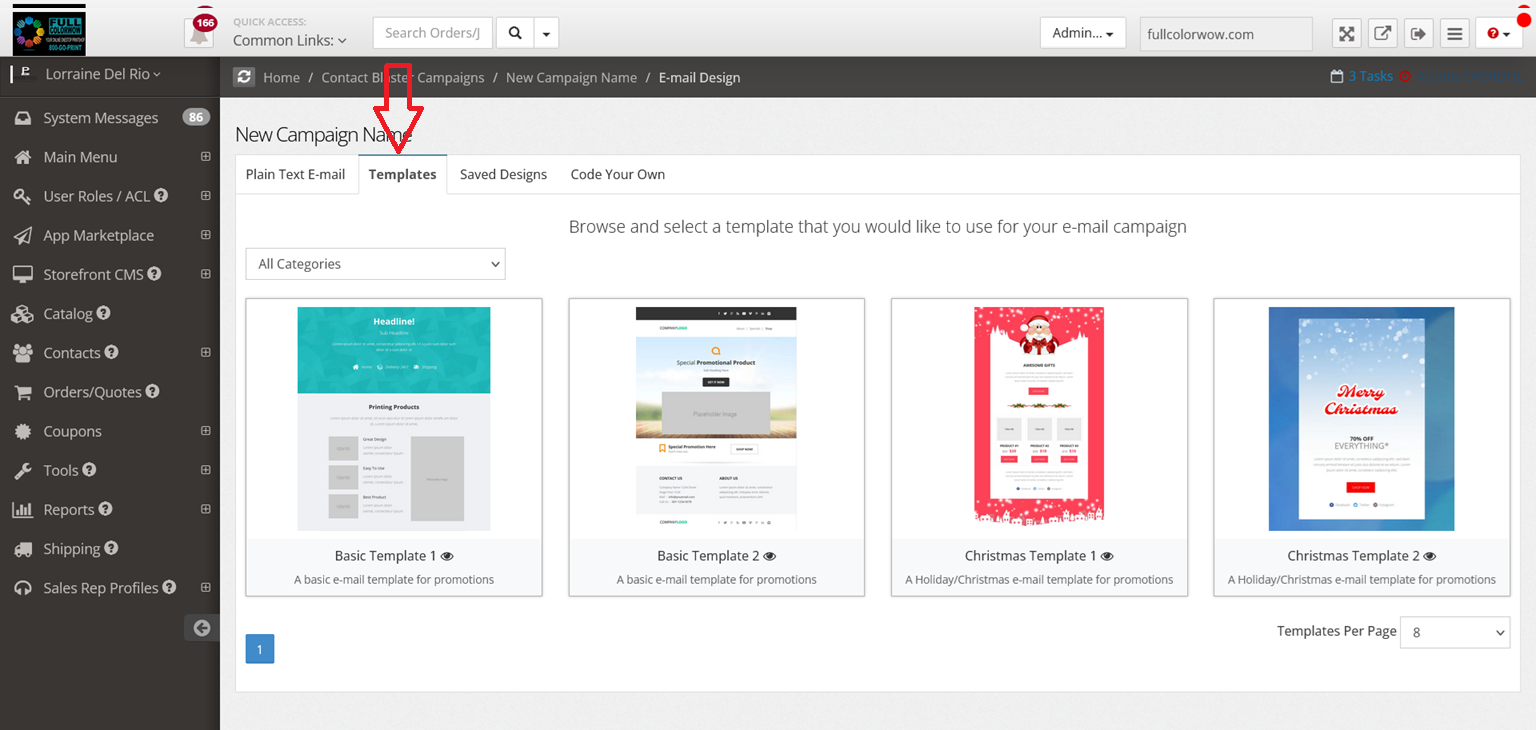
-
Preview your email
Save Email Code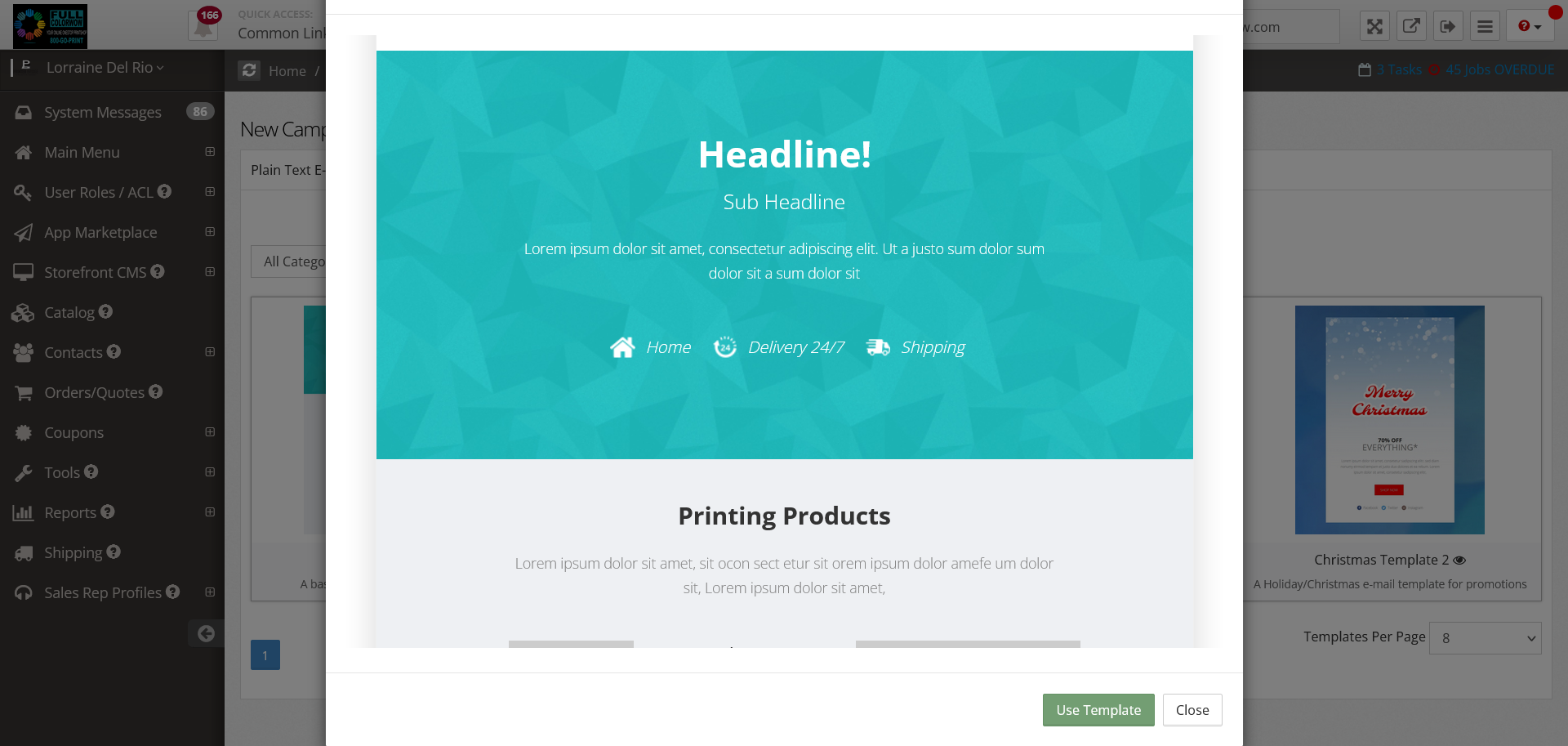
After saving, you can click Edit Email Design to make additional changes.
10. How do I schedule when the email is sent?
Click Schedule Send.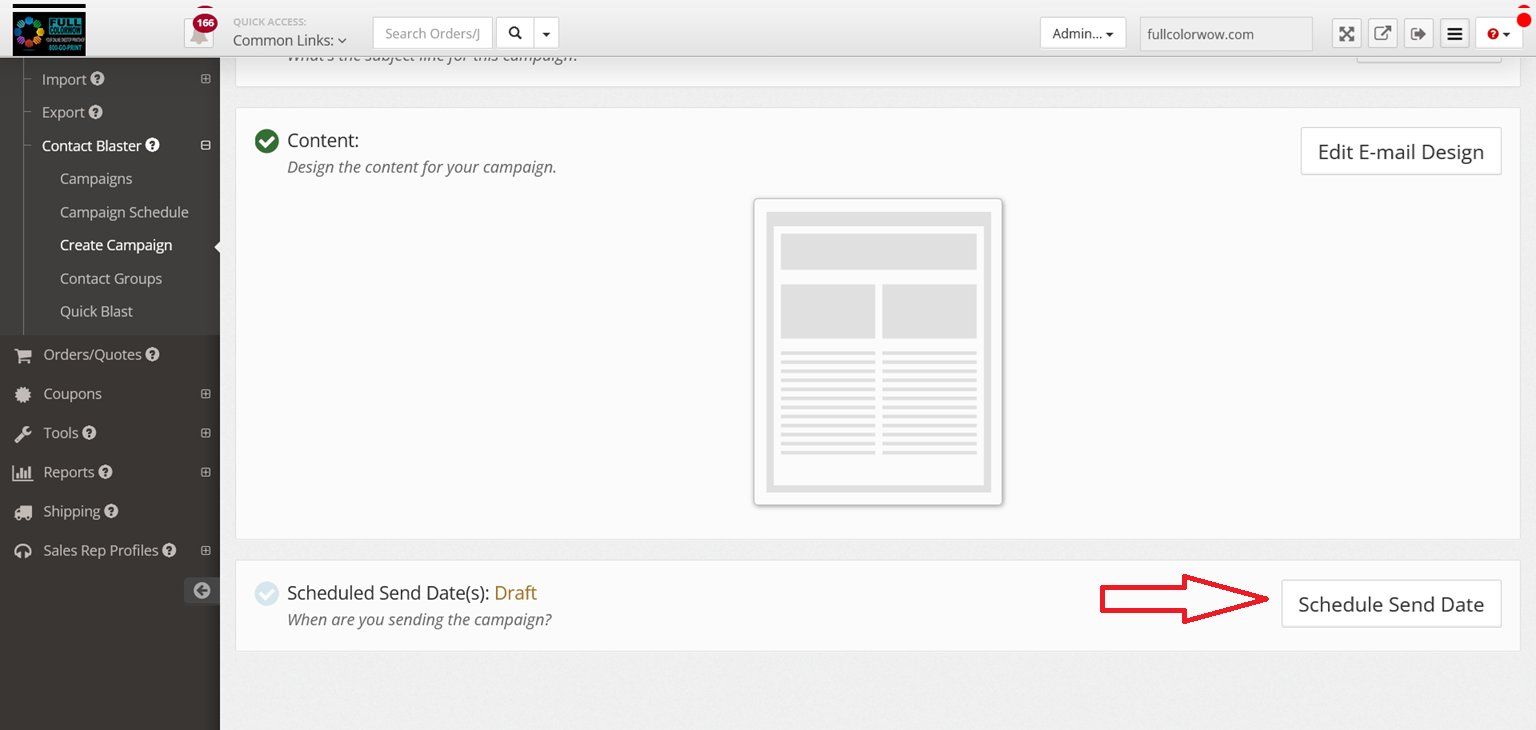
-
Choose the send date.
-
Select the time window for sending.
-
Click Save Schedule.
Important scheduling notes:
-
The system uses Eastern Time (ET).
-
Time is entered in 24-hour format.
Example:
6:11 PM = 18:11
11. Can I send recurring email campaigns?
Yes.
You can set campaigns to send:
-
One time only
-
Daily
-
Weekly
-
Monthly
-
Yearly
You can also choose specific days of the week when repeating campaigns.
Use Ctrl or Shift + click to select multiple days.
12. Can I control how fast emails are sent?
Yes.
The scheduling section allows you to control the sending rate, which helps manage delivery performance.
13. What happens after I schedule the campaign?
Once you click Save Schedule, the system will automatically handle the sending process.
At that point, you can sit back while Contact Blaster manages the campaign delivery.