
What Languages Are Supported?
Currently, the platform supports:
-
-
English
-
Spanish
-
French
-
We will continue improving Spanish and French translations over time.
How to Change Text or Update a Language
Follow these steps:
-
-
Go to the left navigation bar
-
Click Storefront CMS
-
Select CMS Features
-
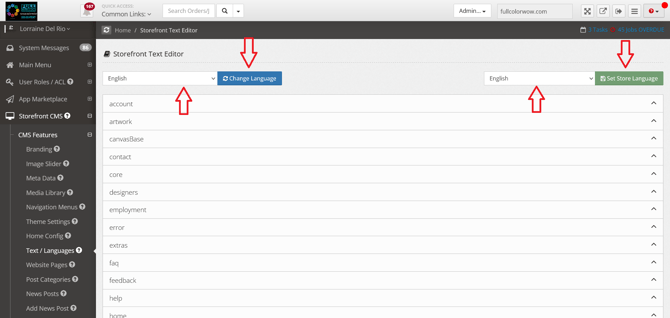
Click Text/Languages
-
Choose the language you want to edit (English, Spanish, or French)
-
You can now begin editing the available text.
How the Text Is Organized
Inside the Text/Languages section:
-
-
The collapsible sections represent folders from the frontend (your storefront).
-
The sections inside each collapse are individual pieces of text from pages within that folder.
-
Example:
If you want to change:
“Fast & Friendly”
to
“Fast & Affordable”
You would:
-
-
Select English
-
Open the Services collapse
-
Look for Printing Services
-
Find the line containing “Fast & Friendly”
-
Update the text and save
-
Important Notes
What You Can Change
-
Approximately 95–99% of the storefront text is editable
-
Most page text can be updated without creating new CMS pages
-
English has the most complete editing support
What You Cannot Change
Some text may not update because it comes from:
-
-
Product names
-
Product descriptions
-
Categories
-
Options
-
Built-in system integrations (such as shipping providers like FedEx or UPS)
-
These elements have their own text settings and must be updated separately if needed.
Why Some Text Doesn’t Update
Certain wording may come directly from:
-
Product or option configurations
-
Non-standard page elements
Because of this, changing the language in Text/Languages may not affect 100% of the content.
Best Practice
If you're updating English content, this tool allows you to make changes quickly without rebuilding CMS pages.
For Spanish and French, we’ll continue expanding and refining editable areas over time.