1) How do I request additional Corporate Portal licenses from 4over?
-
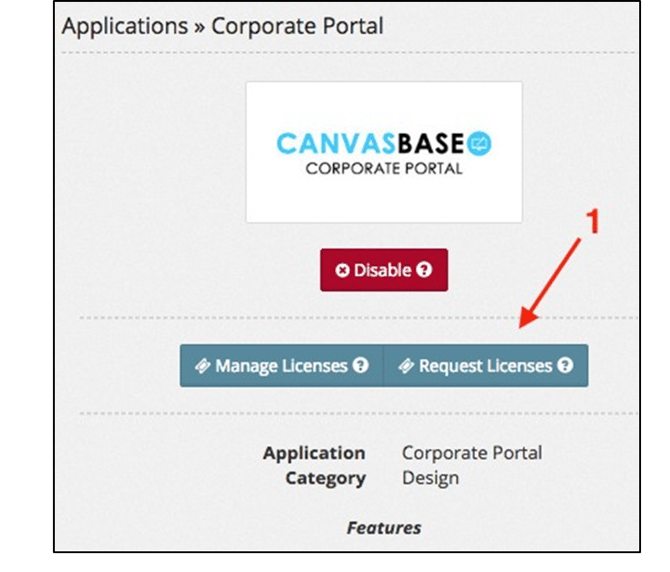
Click Request Licenses.
-
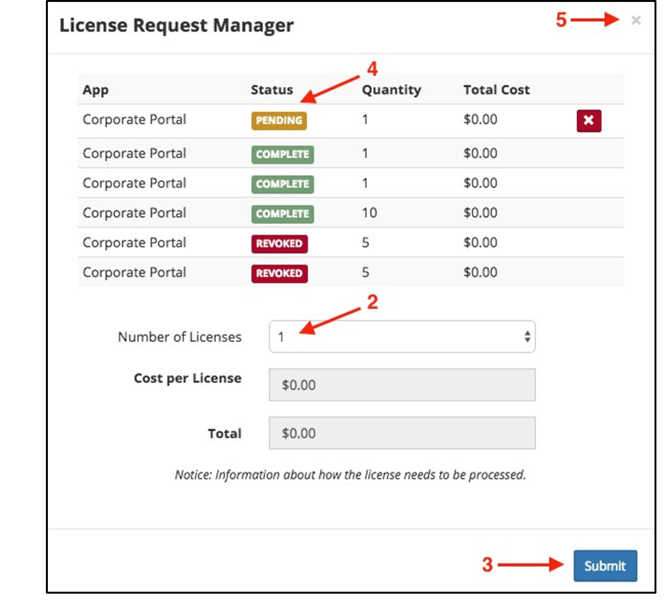
Select the Number of Licenses from the drop down.
-
Click Submit.
-
The status will show Pending until 4over issues the license(s).
-
Click (X) to close.
2) How do I configure pricing for my Corporate Portal licenses?
-
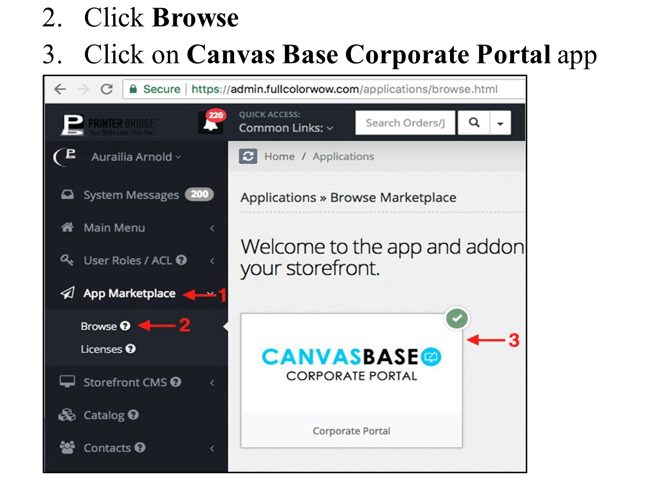
From Admin, go to App Marketplace.
-
Click Browse.
-
Select Canvas Base Corporate Portal app.
-
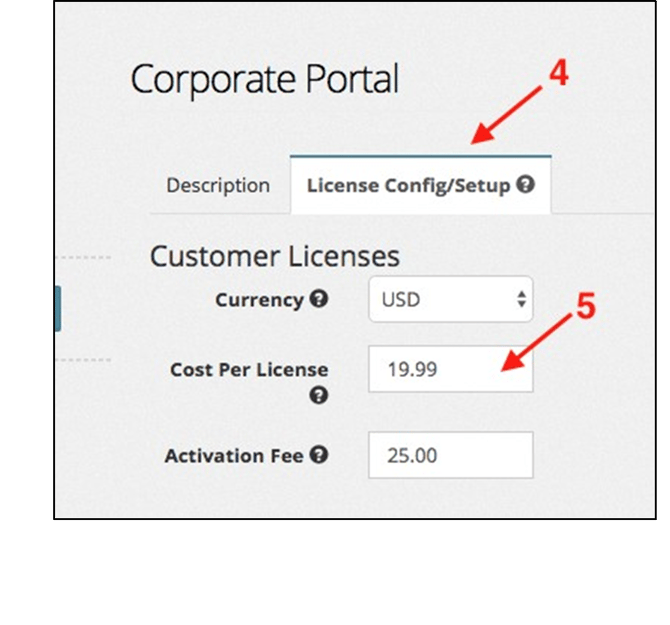
Click License Config/Setup.
-
Set either:
-
Cost Per License, or
-
Activation Fees
-
-
Click Save Changes.
3) How do I request a Corporate Portal license on behalf of a customer?
You may request and set up the license yourself or have the customer complete it.
-
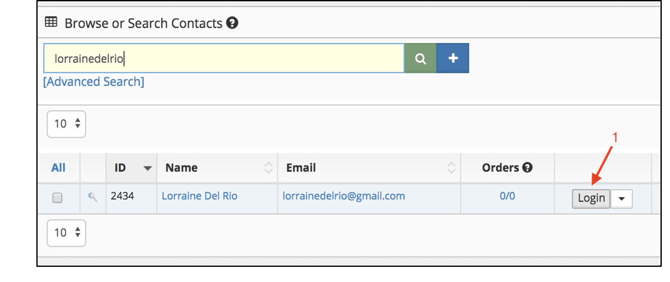
From Admin, log in as your customer:
-
Click Contacts > Browse All
-
Locate the customer’s name
-
Click Login
-
-
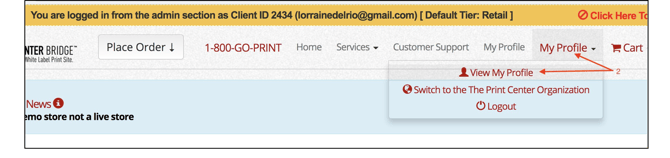
Click My Profile > View My Profile.
-
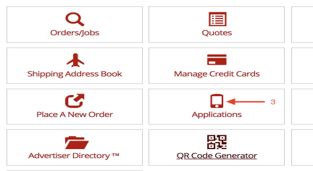
On the profile page, click Applications app.
-
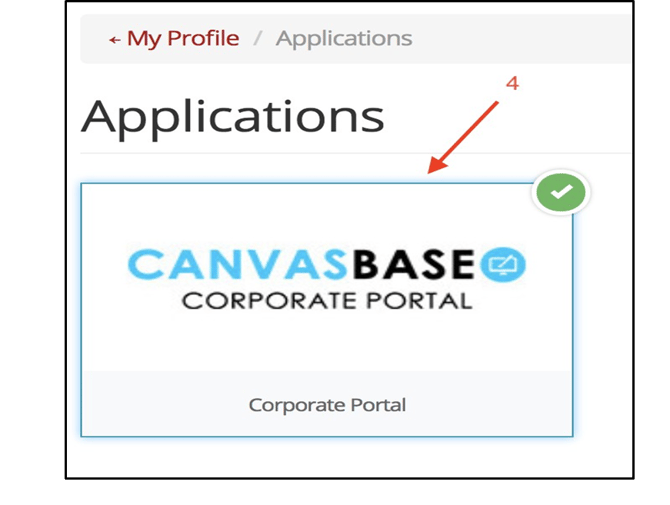
Select Canvas Base Corporate Portal app.
-
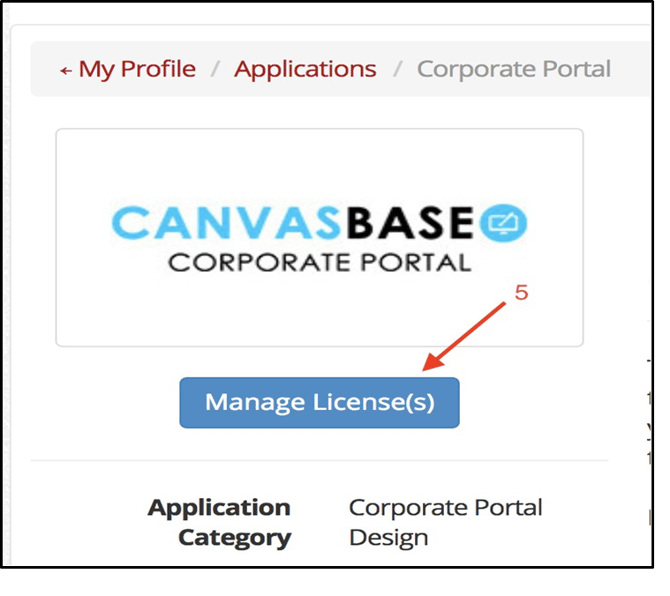
Click Manage License(s).
-
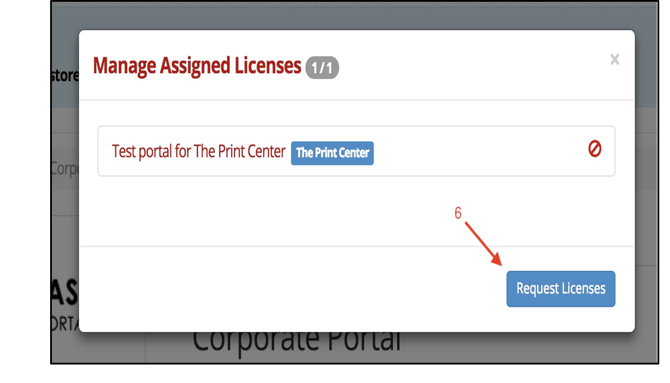
Click Request Licenses.
4) How do I approve a requested license as the Admin Owner?
-
In Admin, go to App Marketplace > Licenses.

-
Locate the customer’s name with Pending License status.
-
Click Issue Licenses.
-
Click OK.
The Corporate Portal license is now successfully issued.

5) How do I set up an Organization for my customer?
You must create the Organization before building the portal.
-
Log into the storefront as your customer (from Admin).
-
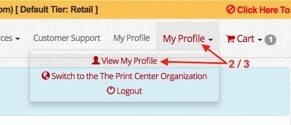
Click My Profile
-
Select View My Profile.
-
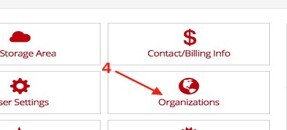
Click Organizations app.
-
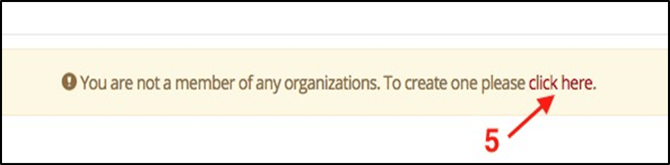
Click Create a New Organization.
-
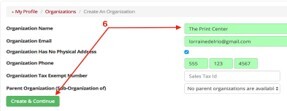
Enter the organization information and click Create & Continue.
-
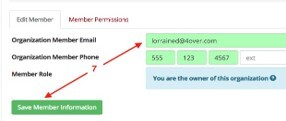
Edit member info and click Save Member Information.
-
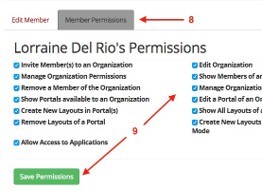
Go to the Member Permissions tab.
-
Set custom permissions for the Organization owner and click Save Permissions.
-
You may remain the Admin Owner or assign your customer as owner.
-
-
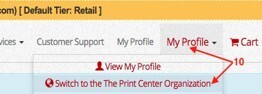
Click My Profile and switch to the new Organization.
6) How do I create a Corporate Portal?
-
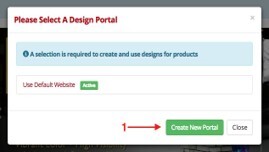
Click Create New Portal (from the pop-up screen).
-
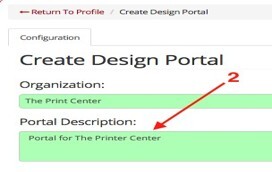
Enter a Portal Description.
-
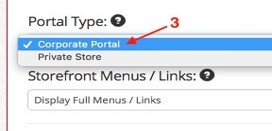
Under Portal Type, select Corporate Portal.
-
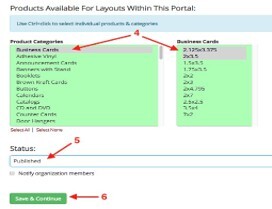
Select the Product Categories and Sizes to include.
-
Set Status to Published.
-
Click Save & Continue.
Your Corporate Portal is now created.
7) How do I set up addresses, customization, and branding?
Address Setup:
-
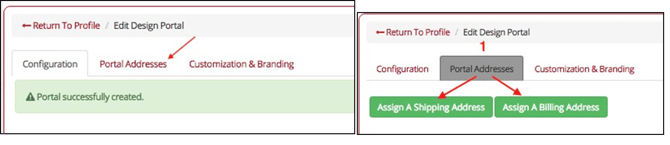
Click the Portal Addresses tab and assign a Shipping & Billing address.
-
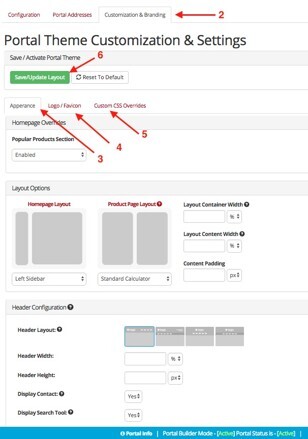
Click the Customization & Branding tab.
-
Edit Portal Theme & Settings under Appearance tab.
-
Click Logo/Favicon tab to add Logo and Favicon.
- Click Custom CSS Overrides tab to further customize/style the customer portal with CSS code
-
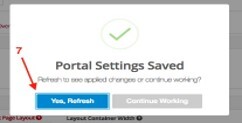
Click Yes, Refresh.
8) How do I create Design Layout Template Properties?
-
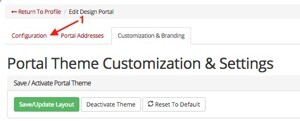
Click the Configuration tab.
-
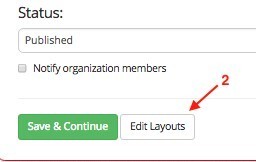
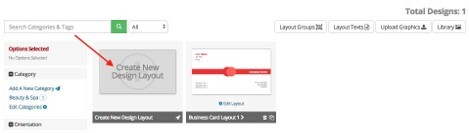
Scroll down and click Edit Layouts.
-
Click Create New Design Layout.
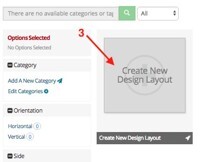
-
Enter the Layout Size (e.g., 3.5 x 2).
-
Add a Layout Name and Description.
-
Click Save & Proceed.
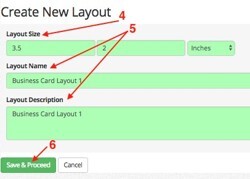
-
Set Active to Yes.
-
Choose Orientation.
-
Select whether to display a Logo/Photo Area.
-
Select Category Filters (or create your own).
-
Choose Layout Style and Color Filters (optional).
-
Select Side (Front or Back).
-
Click Save & Proceed.
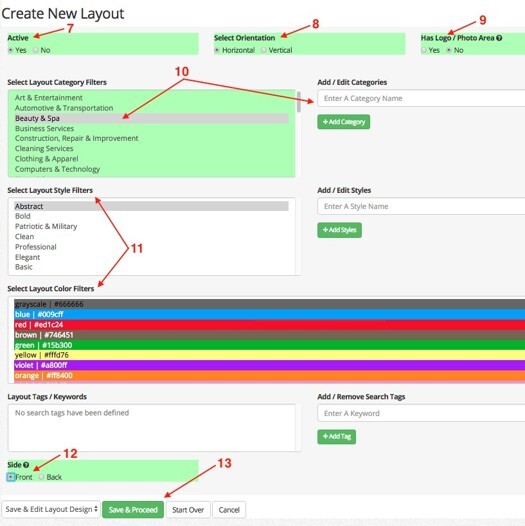
9) How do I design Layout Templates?
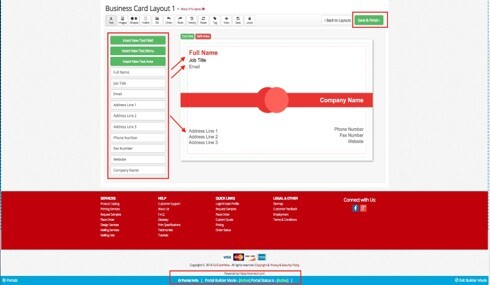
Inside Builder Mode:
-
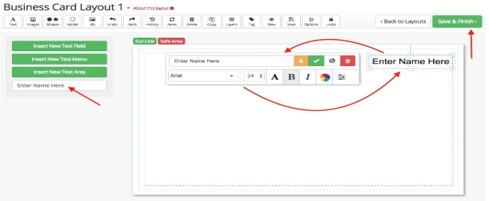
Use the editing tools above the template box.
-
Add Backgrounds (stock library or upload your own).
-
Add Images, Shapes, or Icons (stock or upload).
-
Insert:
-
New Text Fields
-
Text Menus
-
Text Area Fields
-
-
Edit font style, color, size, etc.
-
Lock text positions or prevent customer editing if needed.
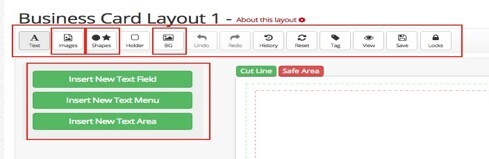
When finished:
-
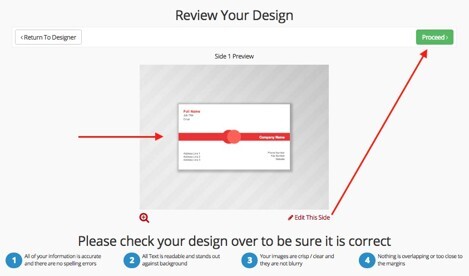
Click Save & Finish (still in Builder Mode).
-
Review and edit if necessary.
-
Click Proceed.
-
Create a back side layout if needed.
10) What are Layout Groups and how do I create them?
Layout Groups allow multiple back-side options for a single front-side design.
-
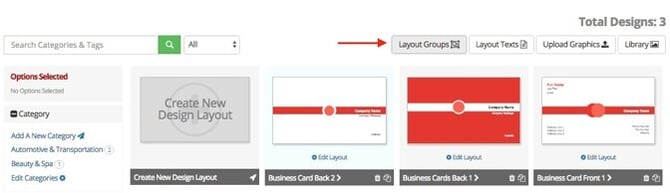
Click Layout Group.
-
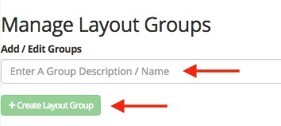
Enter a Group Name/Description.
-
Click + Create Layout Group.
-
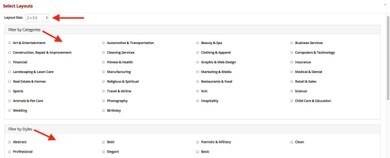
Select Size, Categories, and Style Filters (optional).
-
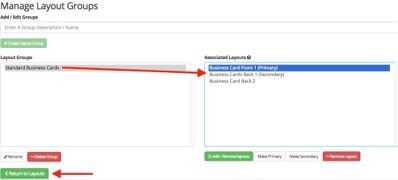
Select at least two layouts.
-
Click Save Layout Group.
Customers will now see multiple back-side options in the designer.
11) How do I exit Builder Mode?
-
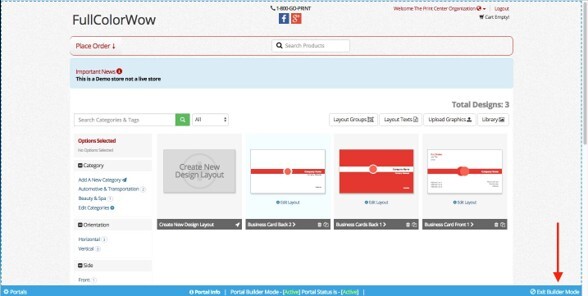
Click Exit Builder Mode (bottom right corner of the Portal).
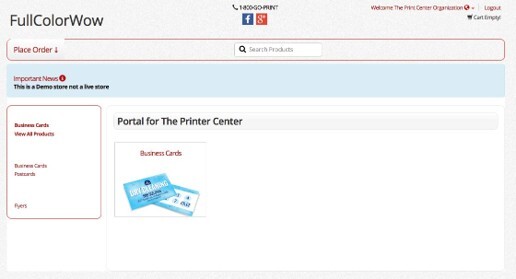
You are now live in the Corporate Portal. Select a product to access the Online Designer.
12) How do I invite members to the Organization?
-
Log into the storefront as the Corporate Portal Admin.
-
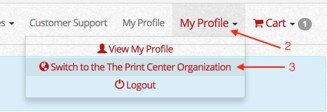
Click My Profile.
-
Switch to the Organization.
-
Select the Portal.
-
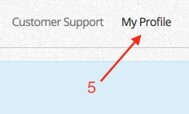
Click My Profile (Organization).
-
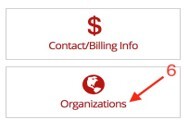
Click Organizations.
-
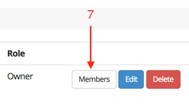
Click Members.
-
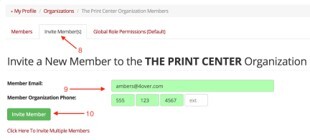
Go to the Invite Member(s) tab.
-
Enter the member’s information.
-
Click Invite Member.
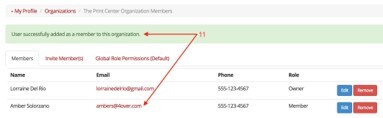
The member is successfully added.