Step 1: Open the Order
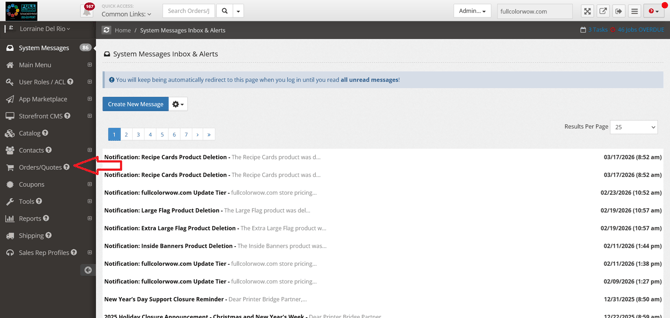
- Go to the Orders/Quotes section in your admin
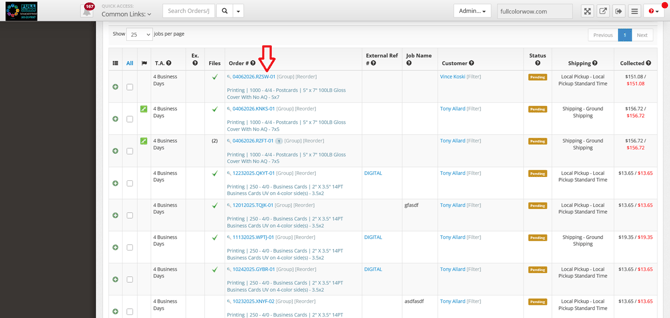
- Or click the job number
- This takes you to the Job Details Page
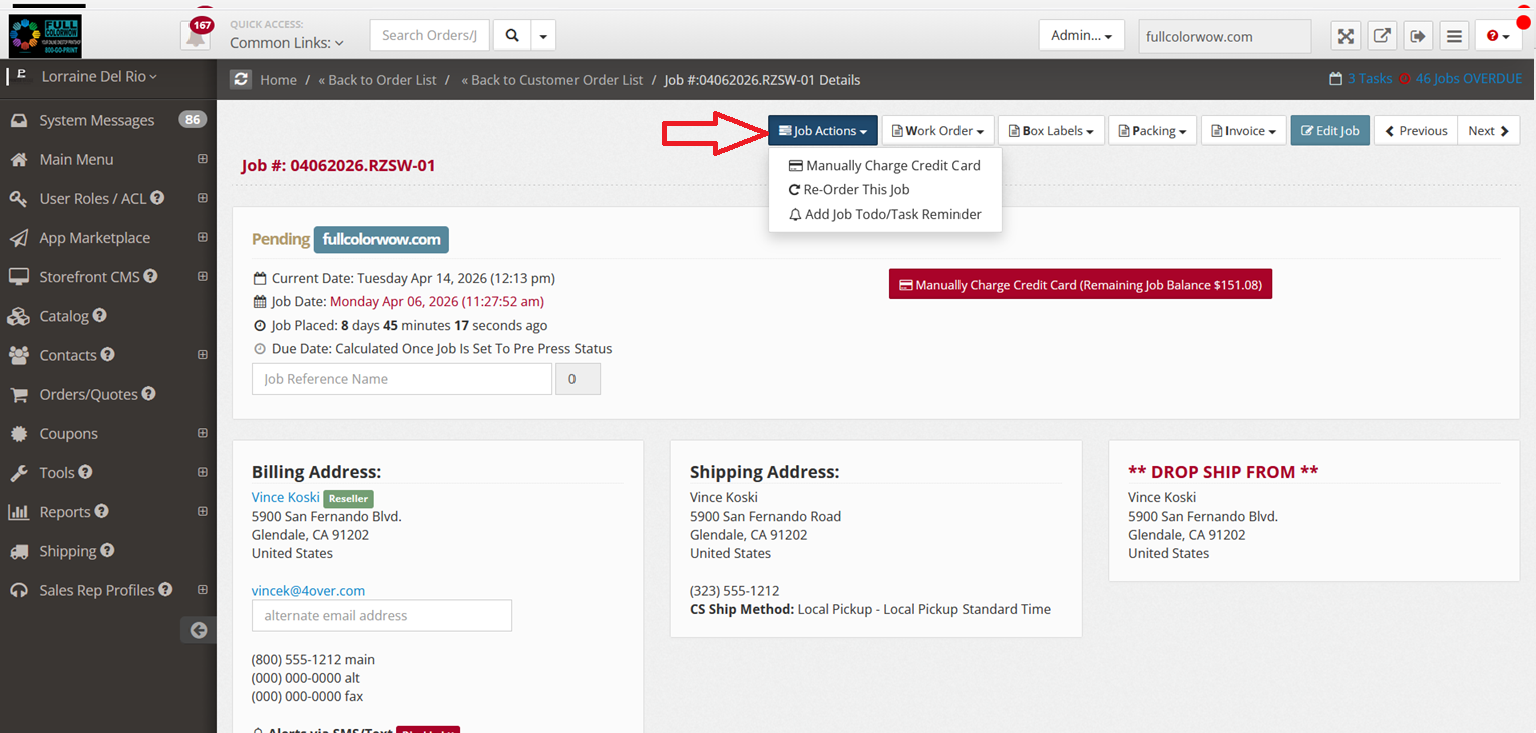
Step 2: Use Job Actions (if needed)
- Charge the customer’s card
- Reorder (duplicate the job)
- Add task reminders
Step 3: Download or Send Documents
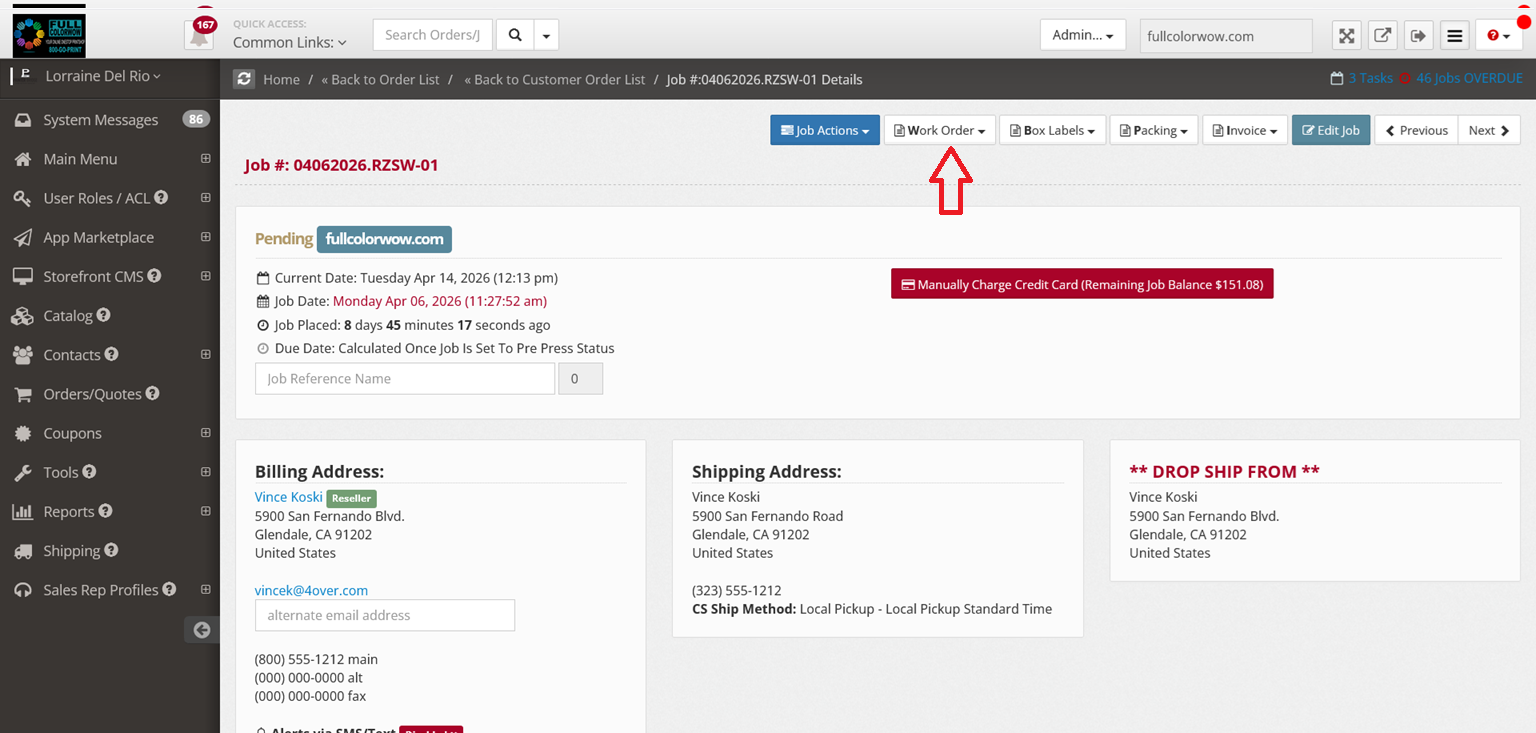
- Go to:
- Work Order tab → Print/download work orders & labels
- Invoice tab → Print, download, or email invoices
Step 4: Edit the Order (if needed)
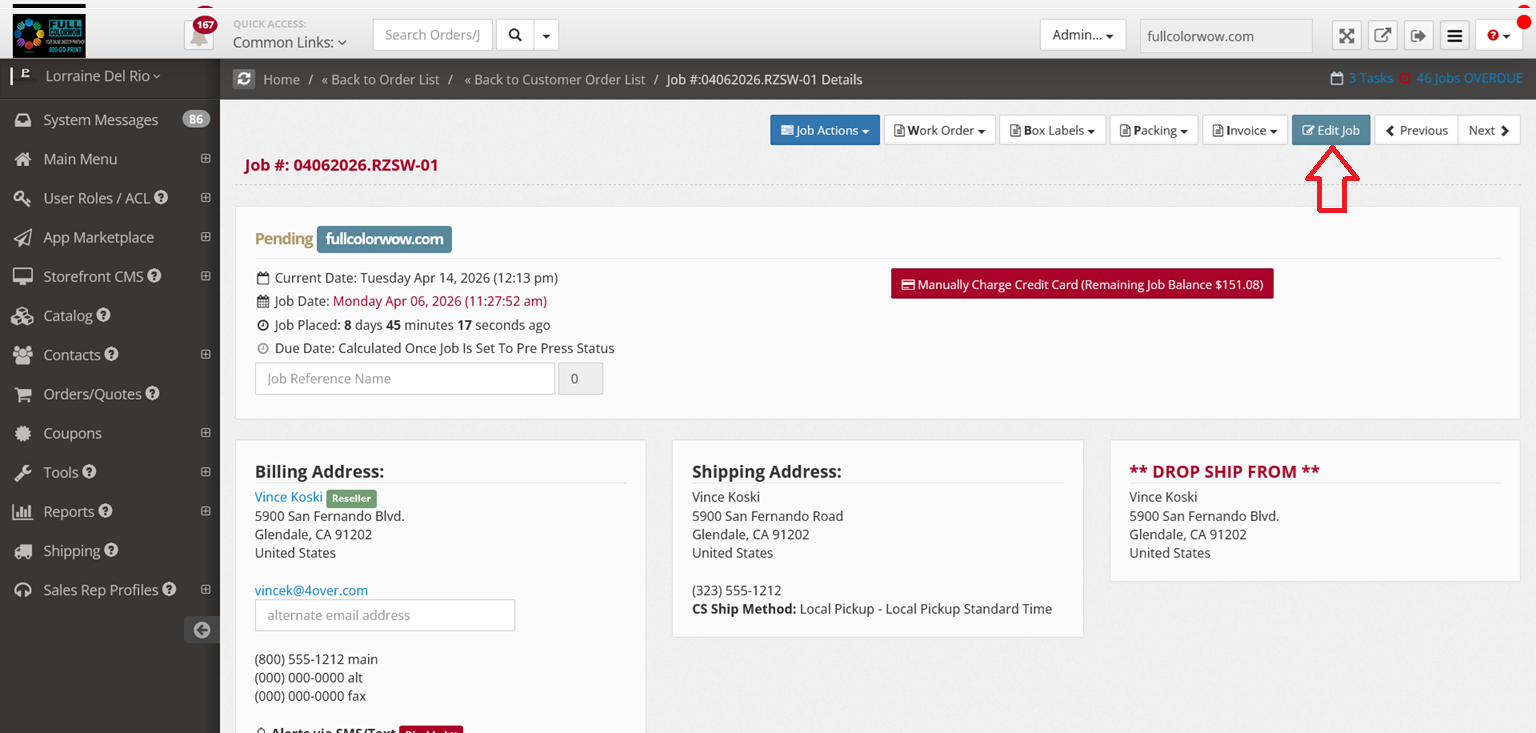
- Click Edit Job
- You can:
- Update shipping address
- Fix order details
Important:
- Changing paper type, size, or coating → must select a new product
- Changing quantity, turnaround, color, orientation → can edit directly
Step 5: Handle Price Changes
- If edits change the price:
- Charge the customer, or
- Issue a refund
- Save the order after updating
Step 6: Review Order Details
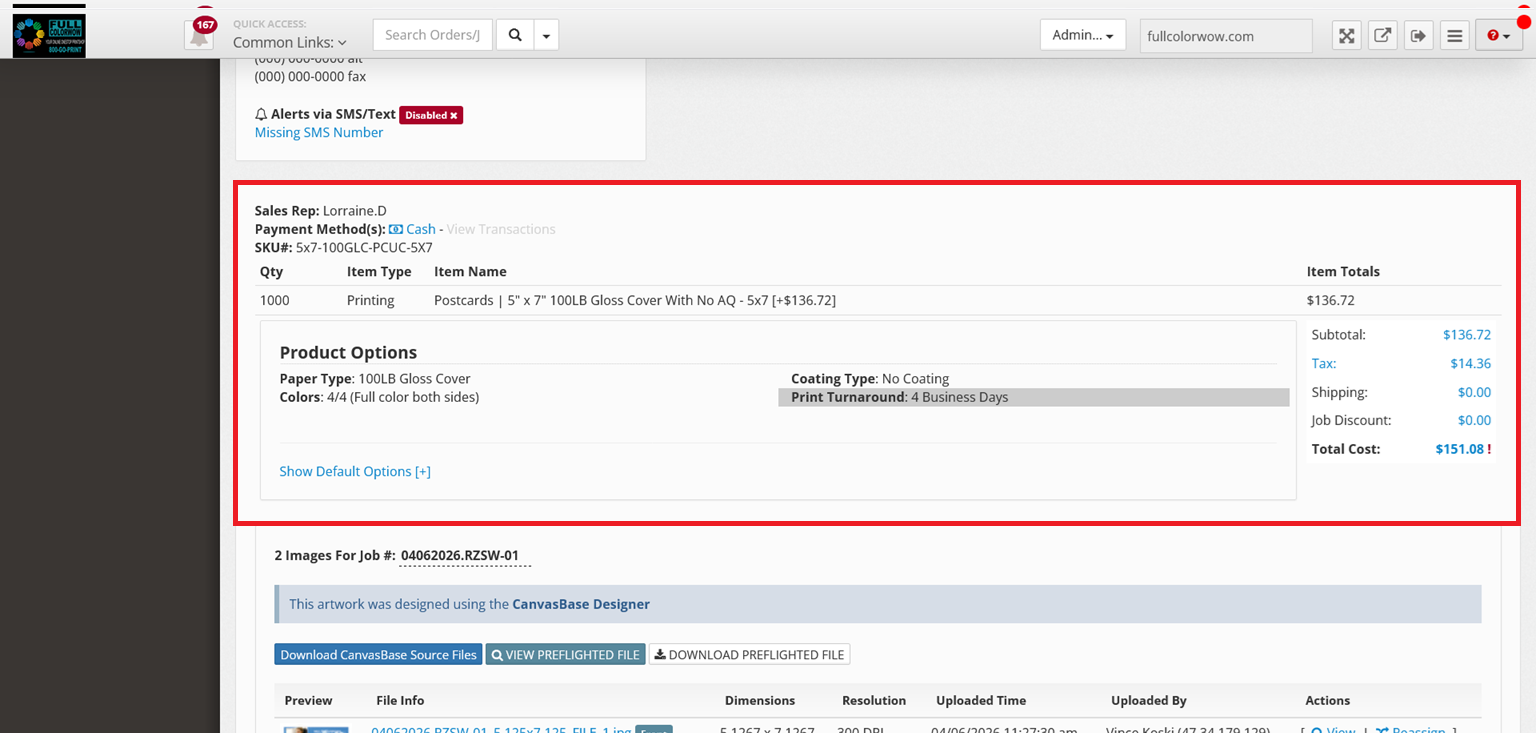
- Check Product Options for specs
- Check Item Totals for pricing (tax, shipping, total)
Step 7: Check Artwork Files
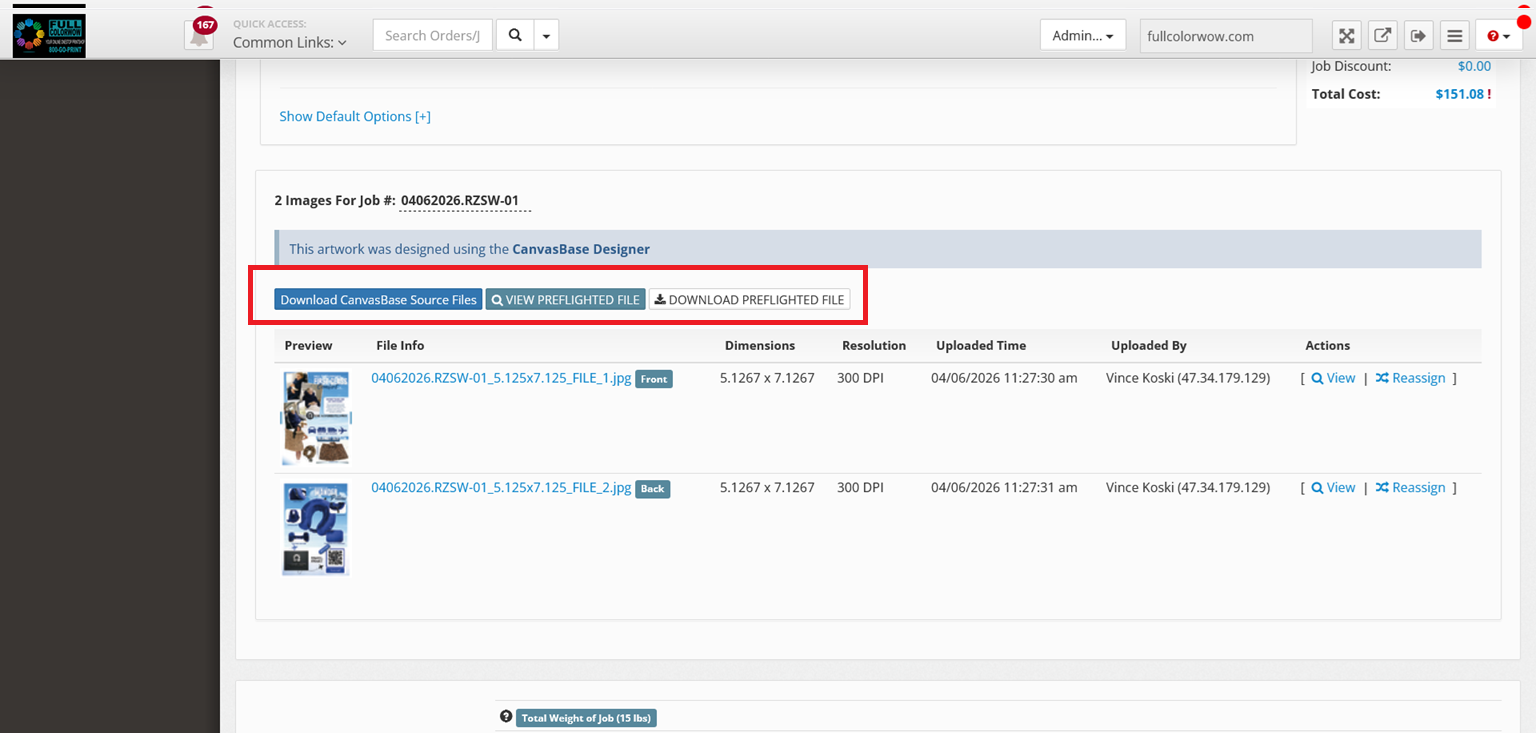
- Download preflighted artwork (print-ready file)
- View original uploaded artwork if needed
Step 8: Preflight Artwork (if required)
If artwork isn’t ready:
- Click Preflight Files
- Adjust artwork to fit bleed/safe areas
- Click OK to Print
- System saves the corrected file
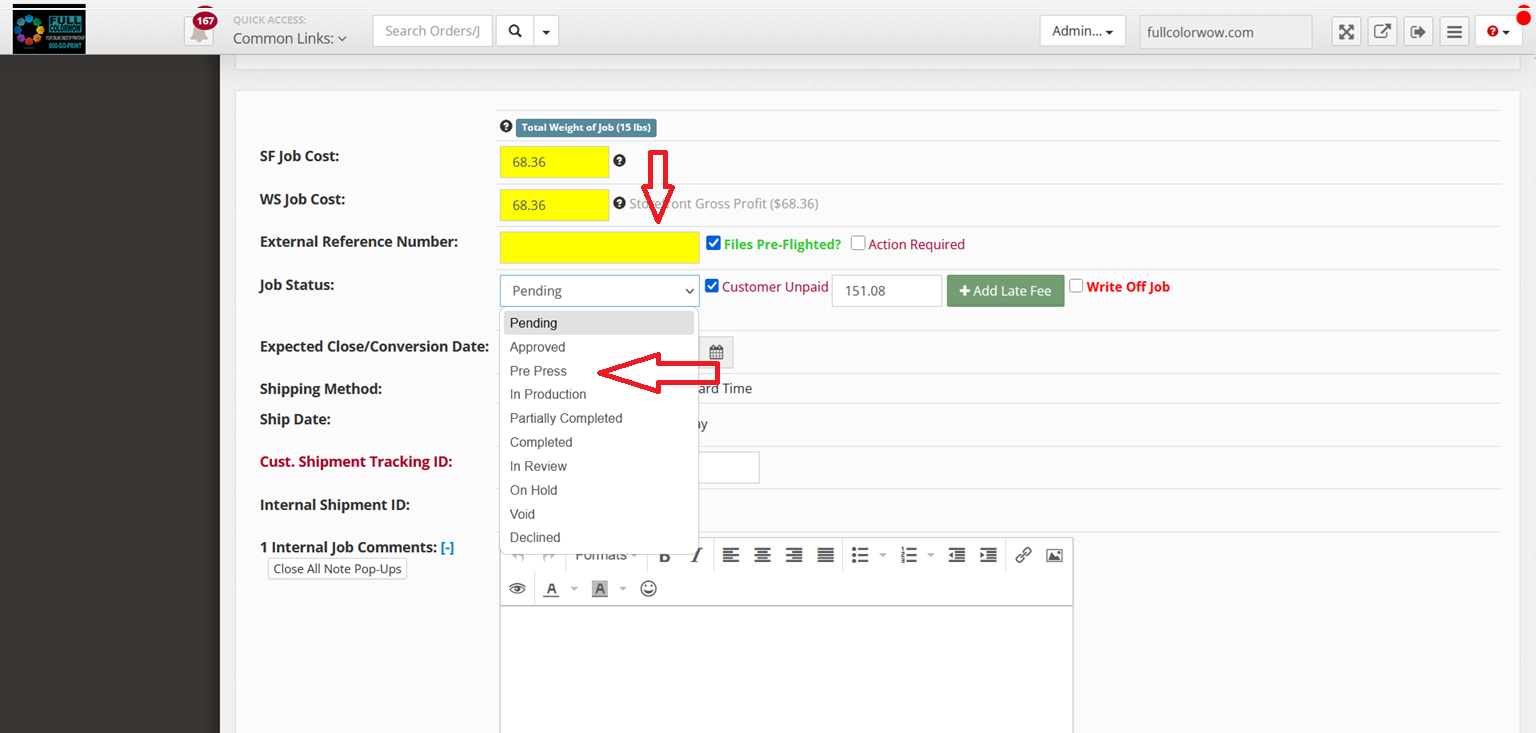
Step 9: Update Job Status
- Change status from Pending → Pre-Press
- This is required to move the job forward
Step 10: Send Message to Customer (optional)
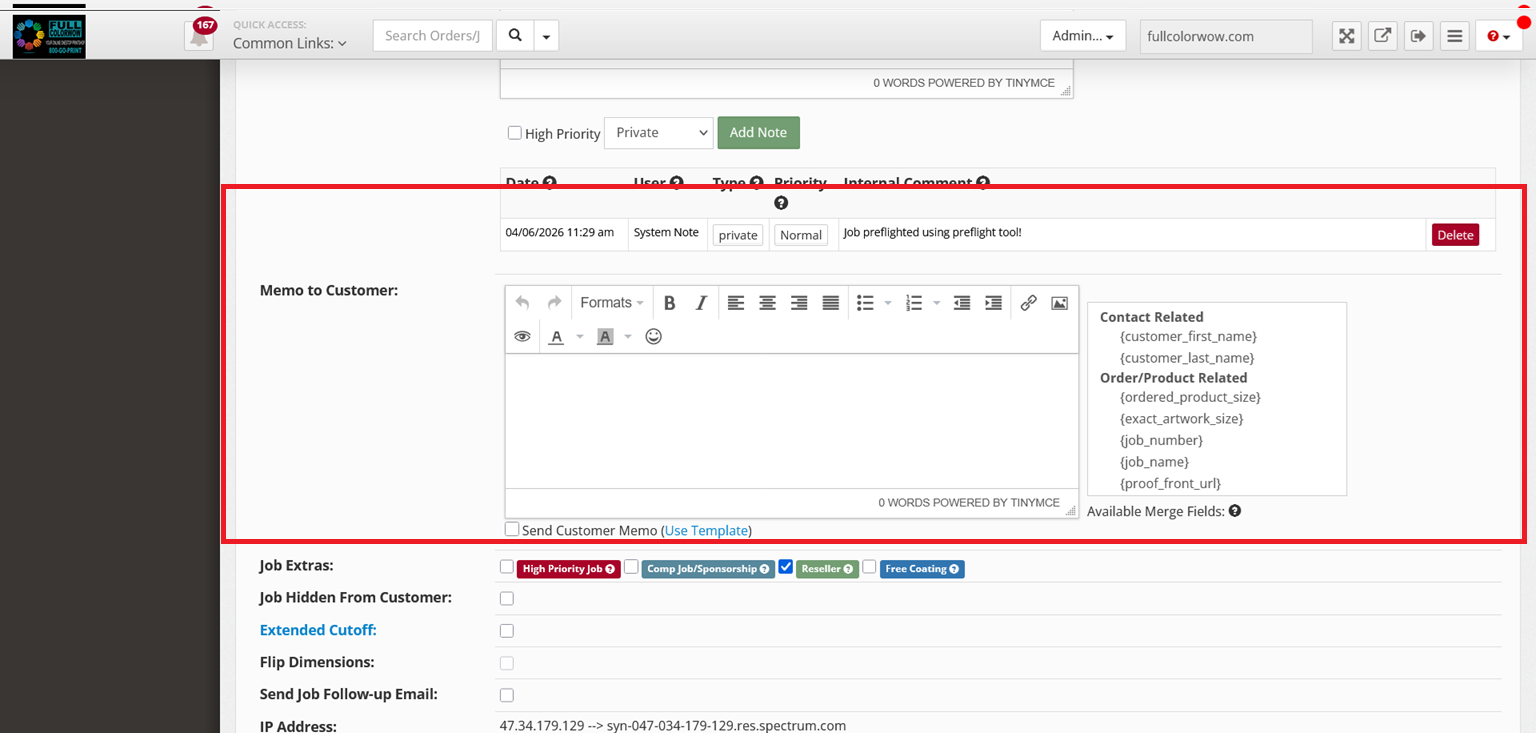
- Go to Memo to Customer
- Select:
- Intro
- Template
- Outro
- Insert template and click Save