
How to Set Up and Use the Price Match Feature
Follow these steps to enable the price match feature and process customer requests.
Step 1: Log in to the Admin Panel
-
Open your storefront Admin Panel.
-
Enter your administrator credentials and log in.
Step 2: Navigate to Store Settings
-
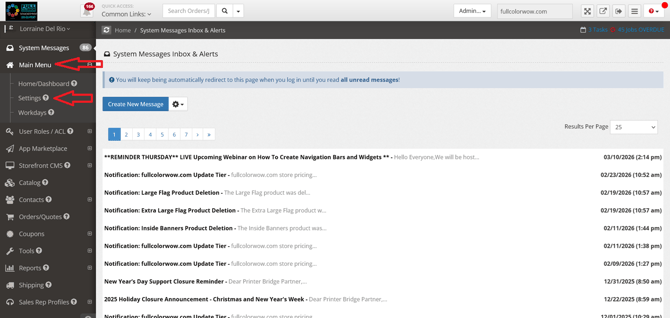
From the Main Menu, click Settings.
-
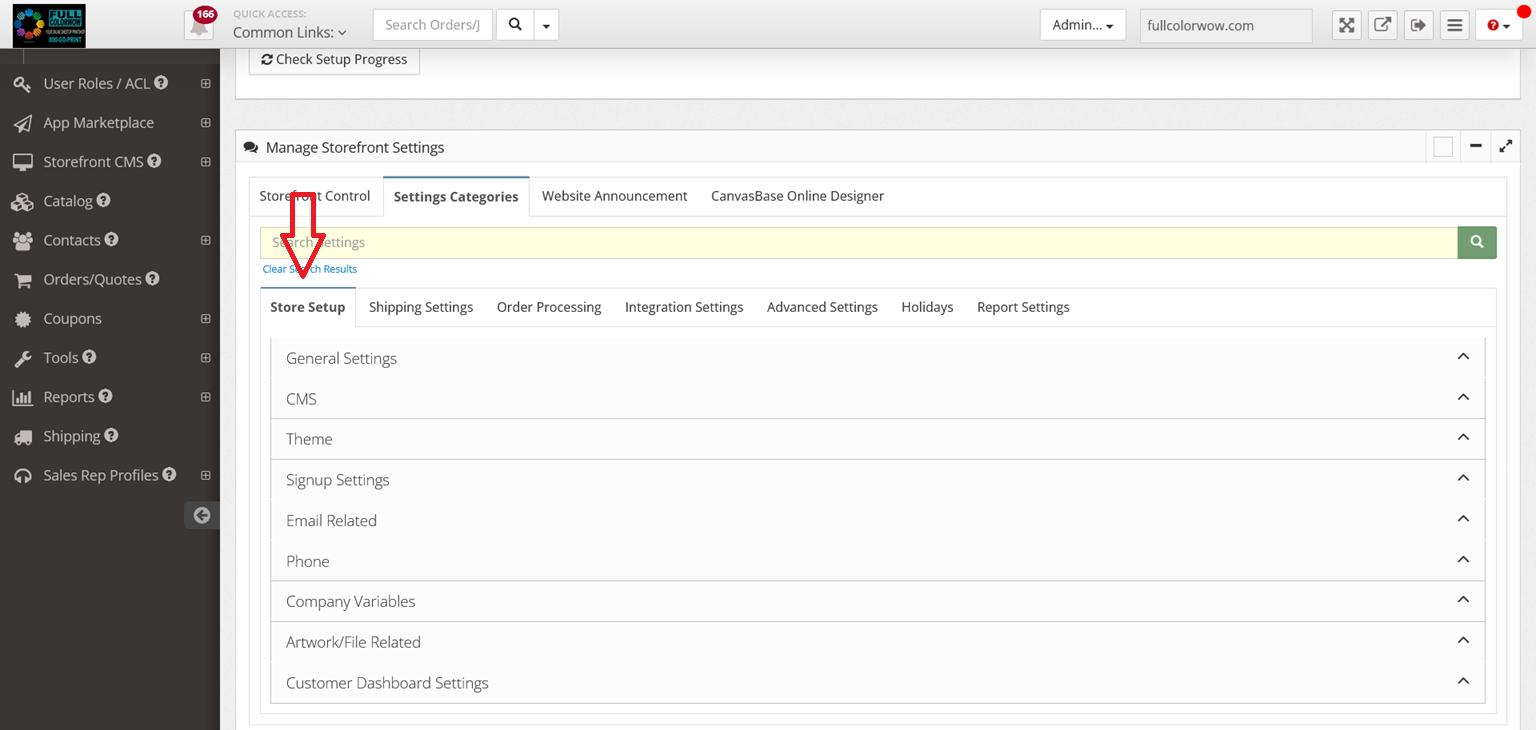
Select Store Setup.
-
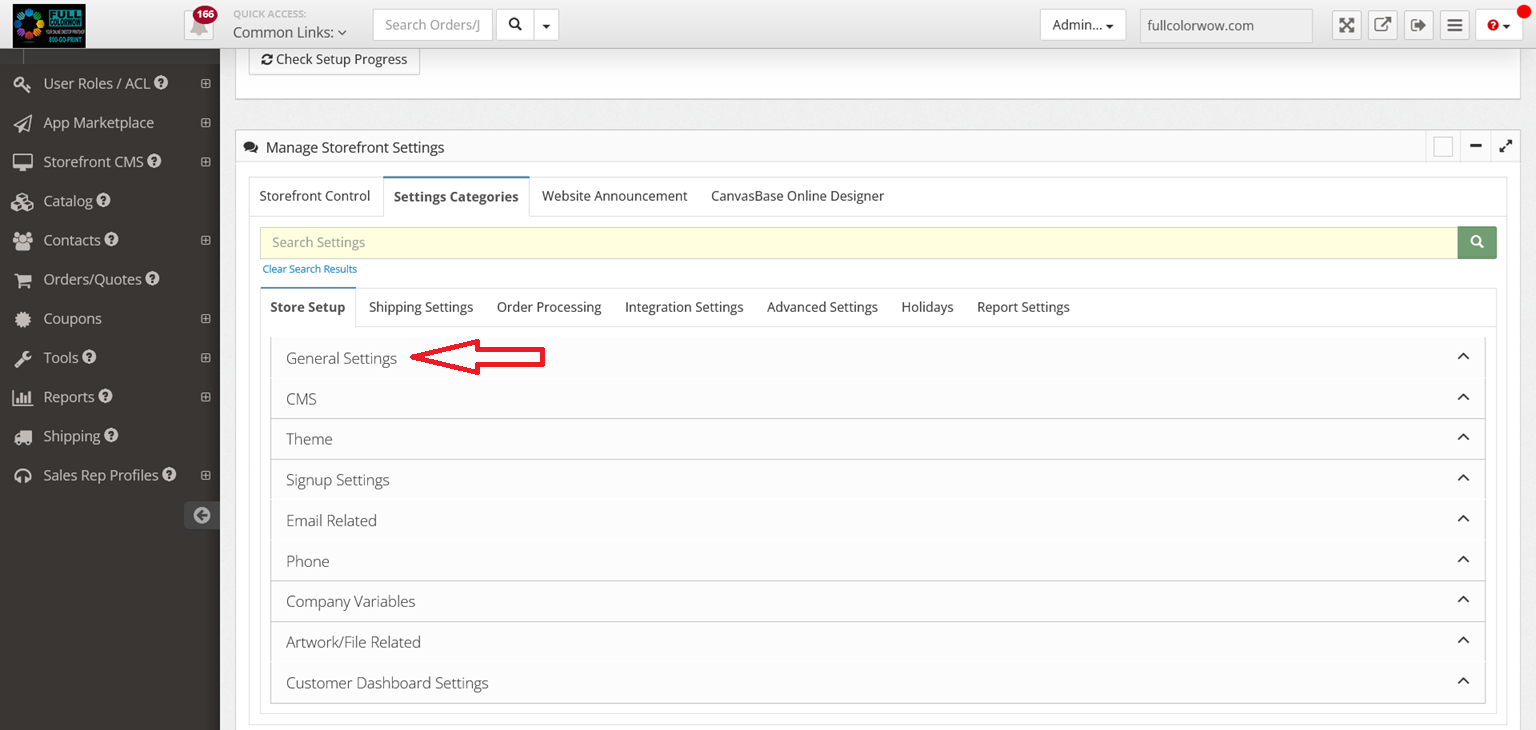
Click General Settings.
Step 3: Enable the Price Match Program
-
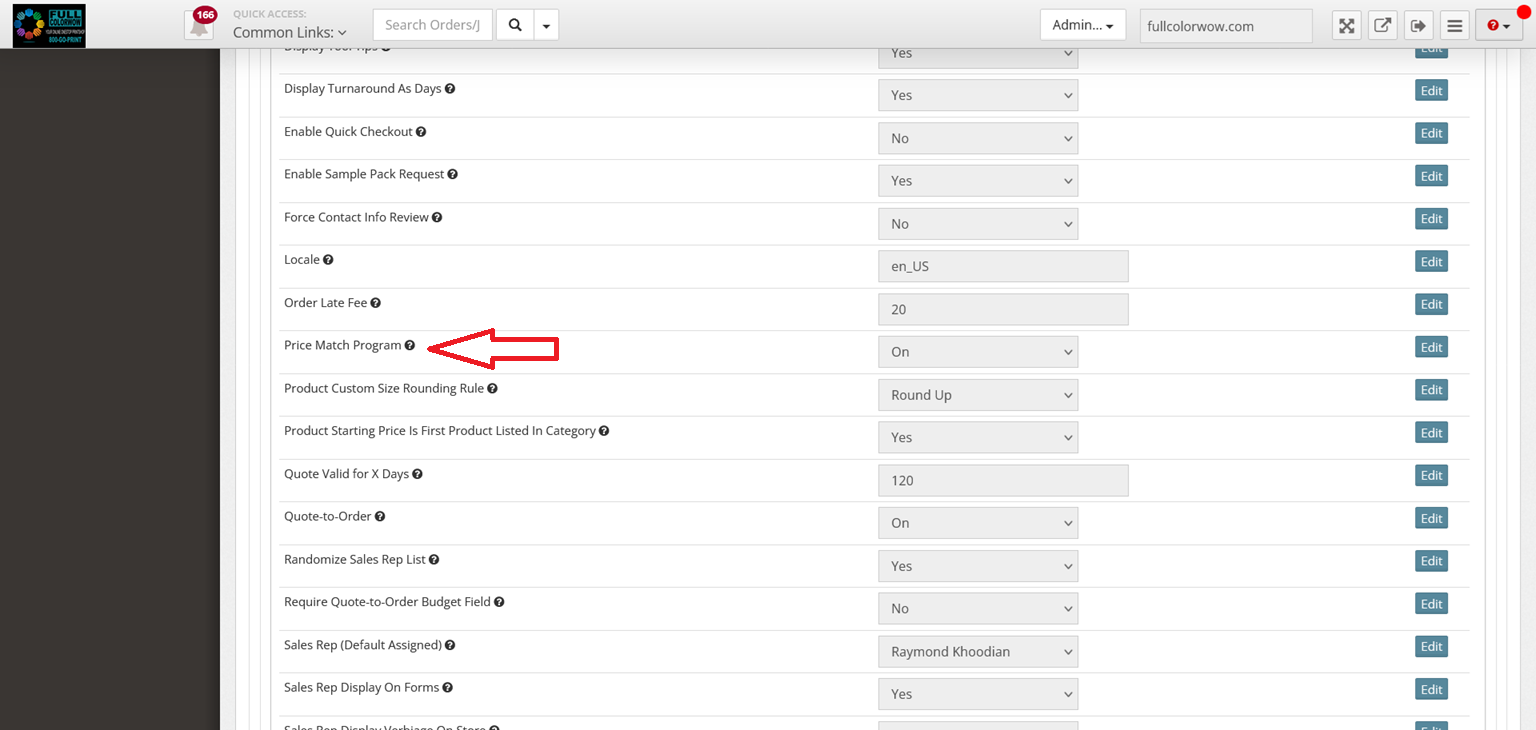
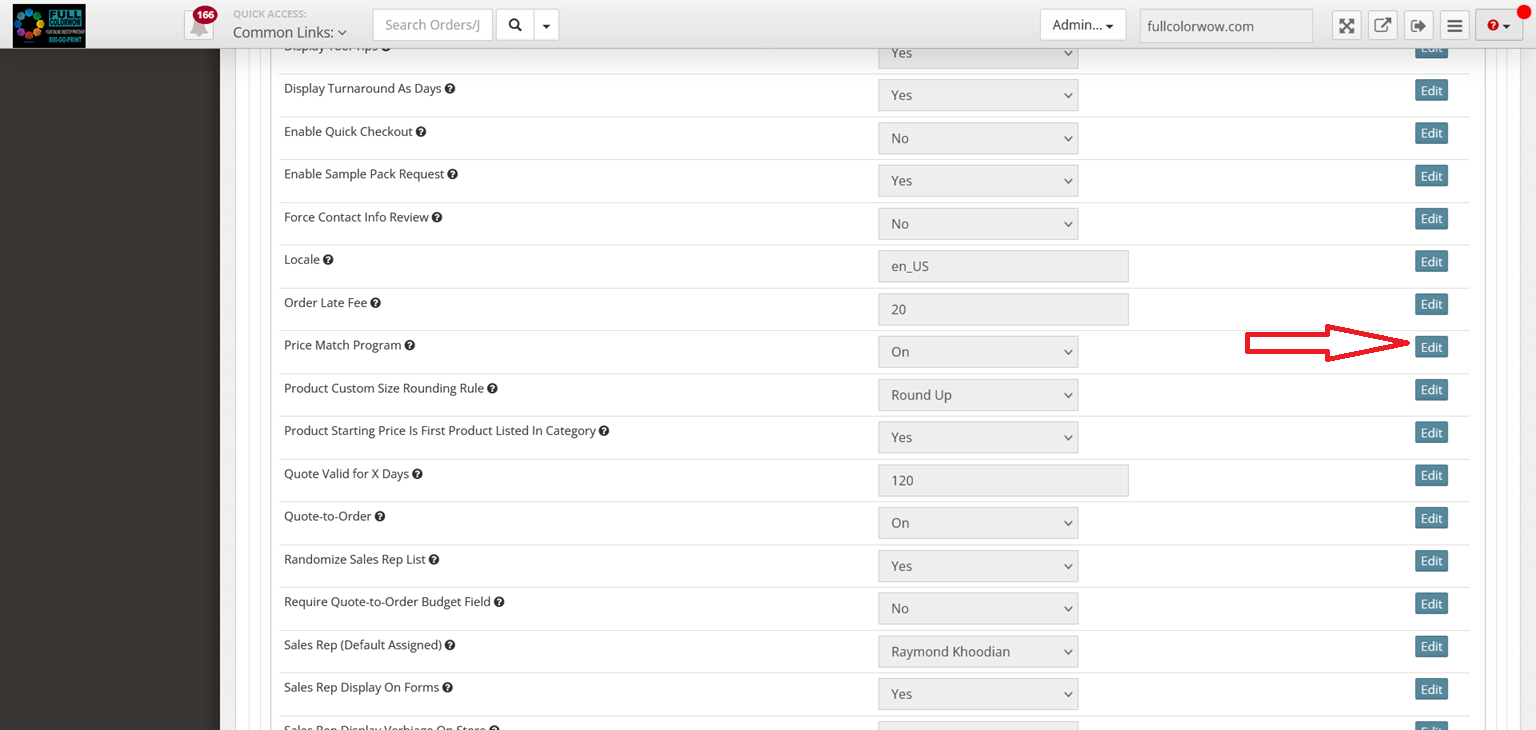
Scroll down until you find Price Match Program.
-
Click Edit.
-
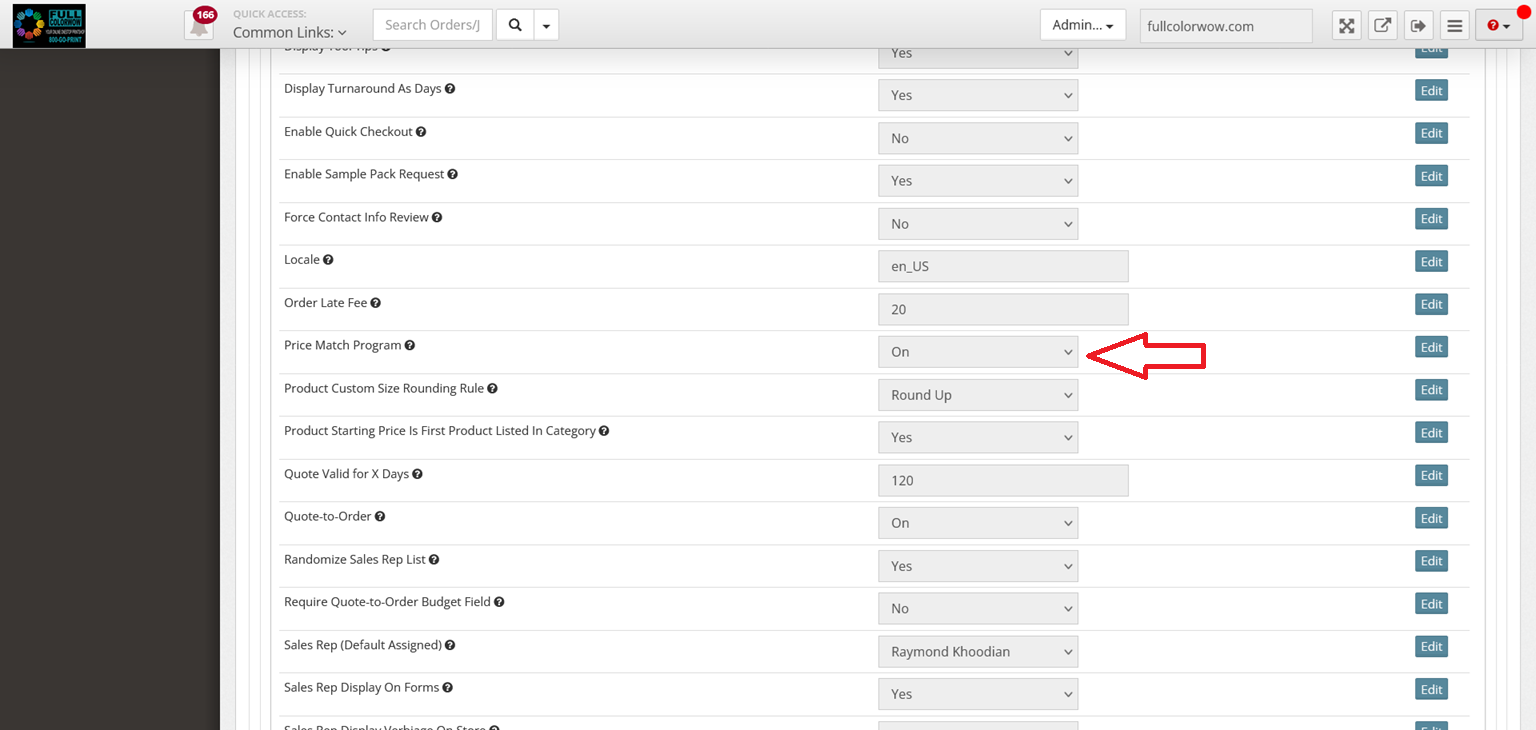
Change the dropdown setting to On.
-
Save your changes.
Once enabled, customers will be able to submit price match requests from the storefront.
Step 4: Verify the Feature on the Storefront
-
Go to your Storefront.
-
Open a product category.
-
Select a product.
-
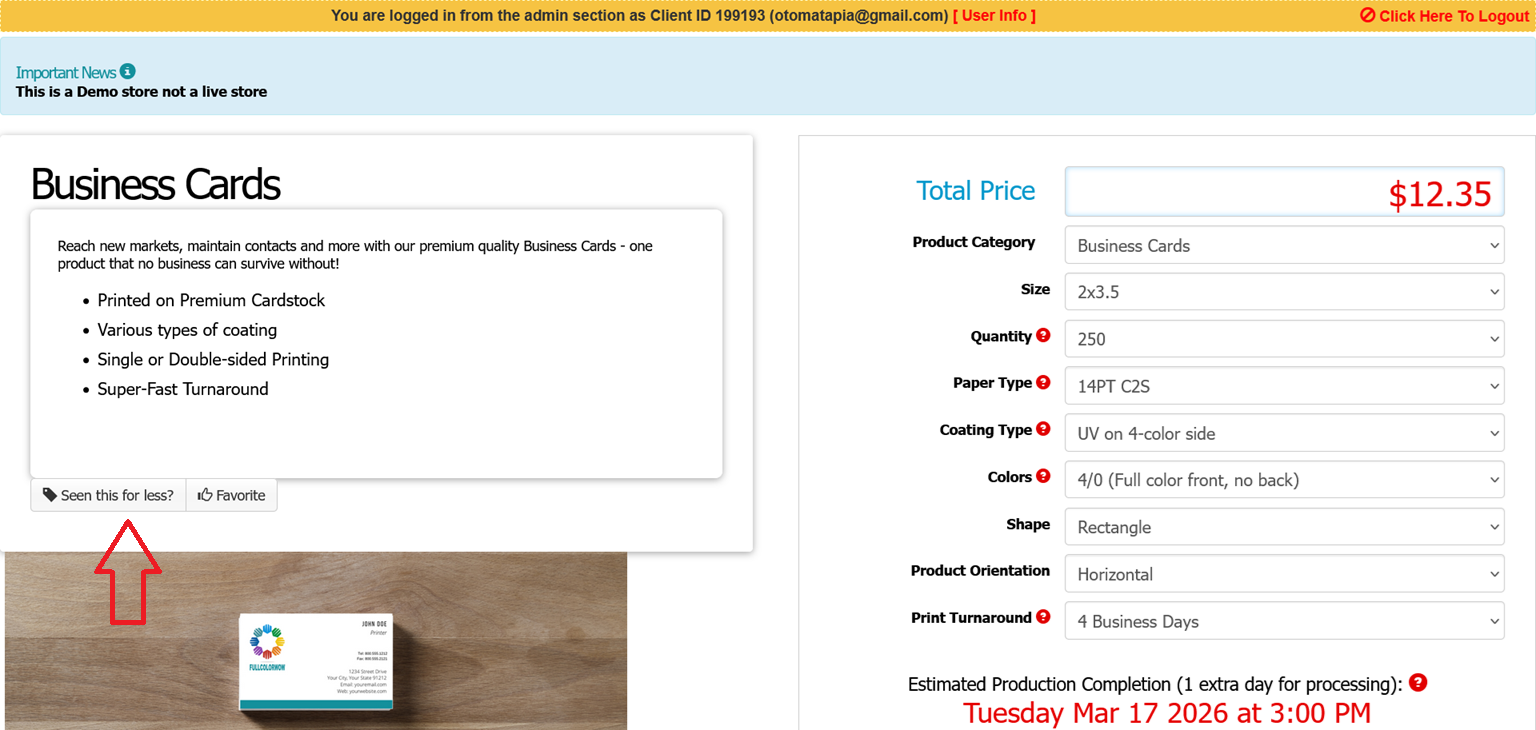
Confirm that a tab labeled “Seeing this for less?” appears on the product page.
Step 5: Customer Submits a Price Match Request
-
The customer clicks “Seeing this for less?”.
-
They are redirected to the Price Match Request page.
-
The customer enters:
-
Competitor’s price
-
Competitor’s website
-
Additional comments (optional)
-
-
The customer submits the request.
-
A confirmation message appears showing the request was successfully submitted.
Step 6: Receive the Price Match Request Email
-
The store admin receives an email notification with the price match request.
-
Open the email.
-
Click the link provided to review the request.
Step 7: Open the Customer Account
-
Clicking the link redirects you to the specific customer’s account in the admin panel.
-
Locate the customer details page.
Step 8: Edit Customer Pricing
-
Click Edit next to the customer’s name.
-
Select the Edit Tier Pricing tab.
-
A list of store product categories will appear.
Step 9: Select the Product to Adjust
-
Choose the relevant product category (for example, Business Cards).
-
Select the specific product requested in the price match.
-
Adjust the price as needed.
Step 10: Save the Pricing Update
-
Confirm the updated price.
-
Save the changes to apply the new pricing to the customer’s account.
Step 11: Reset Prices if Needed
If you need to undo pricing changes:
-
Click Reset all prices to default.
-
This will restore the original pricing.