
FAQ: Using the Preflight Tool
1. How do I launch the Preflight Tool?
To open the preflight tool, click the green button labeled “Pre-Flight Files.”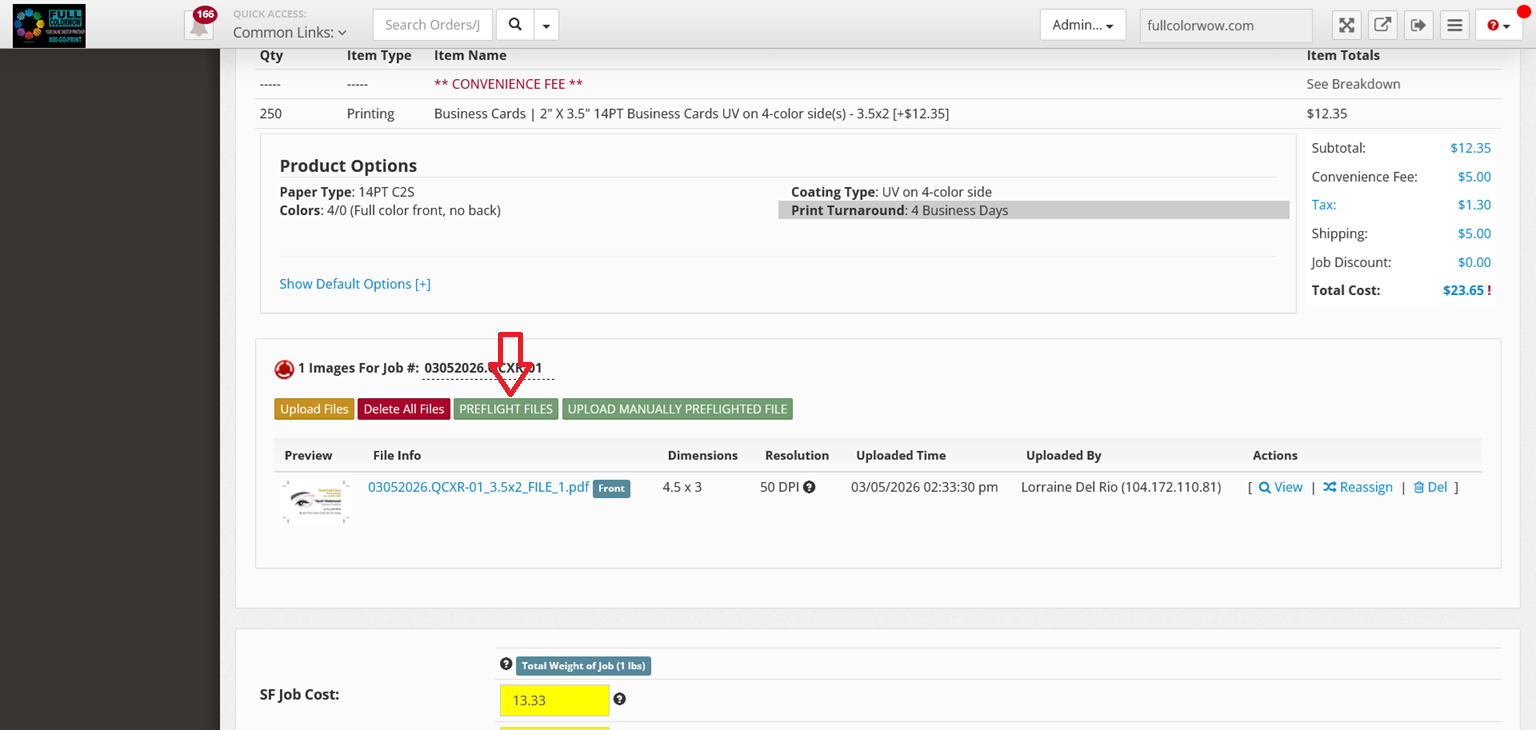
Once launched, the tool begins automatically checking and preparing your uploaded artwork files for production.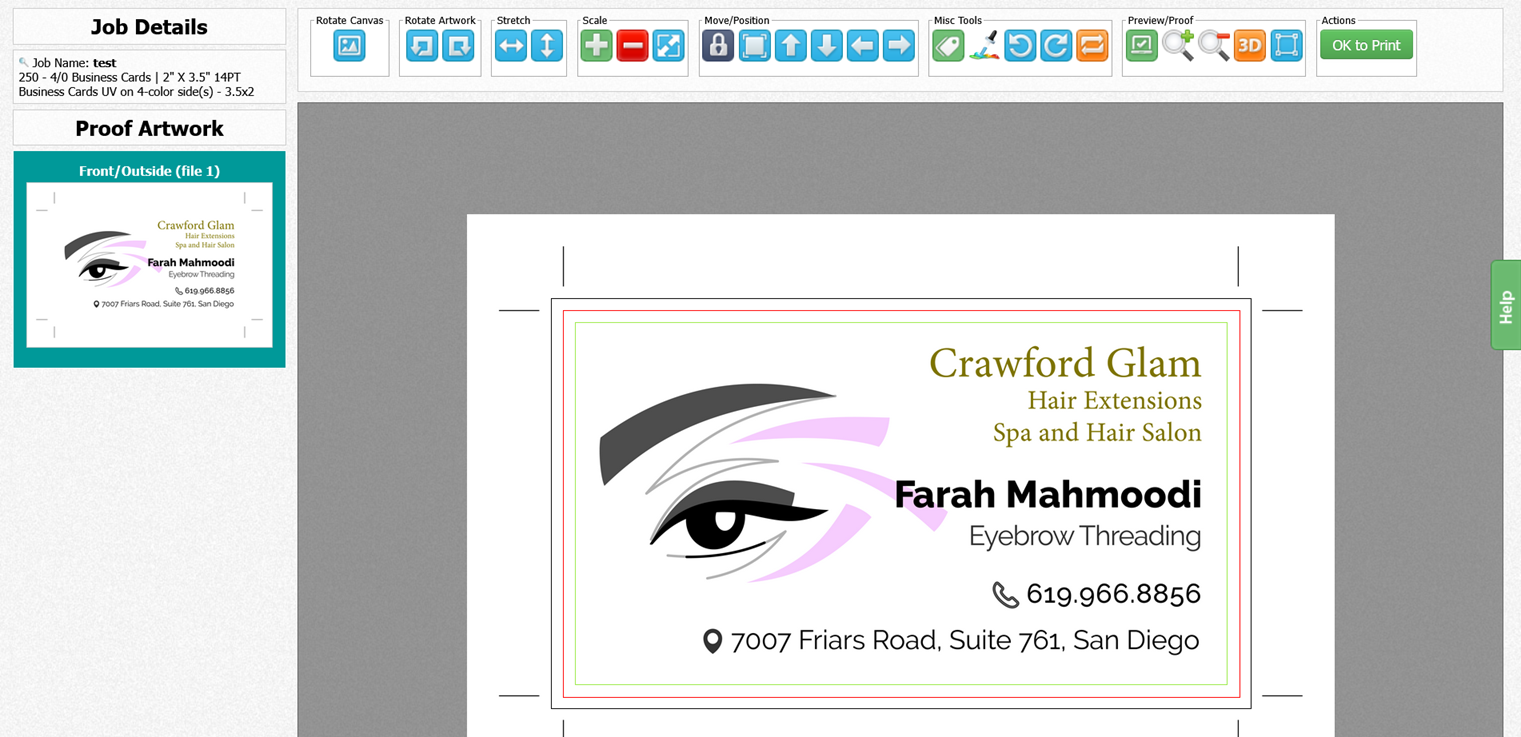
2. What does the Preflight Tool do automatically?
The preflight tool performs several automatic checks and adjustments, including:
-
Converting files from RGB to CMYK
-
Checking image resolution
-
Detecting color conversion issues
-
Identifying other potential file problems
If any issues are detected, the system will notify you.
3. Can I preview my uploaded files?
Yes. A preview of your files appears on the left side of the screen so you can review how your artwork will look before production.
4. What happens if my order is double-sided but only one file is uploaded?
If the job is double-sided and a second file is missing, a large red X will appear in the missing file location.
This alerts you that another file needs to be uploaded.
5. What happens if I upload a two-page PDF?
The system will automatically split the two-page PDF into two separate files so that each side can be edited and prepared independently.
6. Can I rotate my artwork?
Yes. The tool allows you to:
-
Rotate artwork clockwise
-
Rotate artwork counterclockwise
Make sure the artwork orientation matches the canvas orientation for proper printing.
7. Can I resize artwork in the Preflight Tool?
Yes. You can:
-
Stretch artwork vertically or horizontally to fit the canvas.
-
Use the plus (+) or minus (−) buttons to increase or decrease the file size.
⚠️ If resizing could affect quality, the system will notify you that the artwork quality may be compromised.
8. How do I move artwork on the canvas?
To move the artwork:
-
Unlock the file first.
-
Click and drag the artwork to the desired position.
You can also:
-
Center the artwork automatically
-
Use arrow buttons to move it up, down, left, or right
9. What are the miscellaneous tools used for?
The miscellaneous tools allow you to modify the file further. These tools include:
-
Text Tag – Adds a text label to the order (by default, it prints your domain name).
-
Color Picker – Choose a background color for the file.
-
Undo – Reverse your last change.
-
Redo – Restore a change after undoing it.
-
Reset – Revert the file back to the original uploaded version.
-
Erase Changes – Remove all edits made to the file.
10. How can I preview the final proof?
The tool offers several preview options:
-
Trim Preview (green checkbox) – Shows how the artwork will appear after production trimming.
-
Zoom In / Zoom Out – Inspect artwork details.
-
3D Preview – View the file in three dimensions, rotate it, and flip the artwork to ensure correct orientation.
11. What does the fullscreen button do?
The blue box button expands the preflight Tool to full-screen mode or exits full-screen view.
12. How do I approve files in the Preflight Tool?
There are two approval steps:
-
Proceed to Next File – Marks the current file as approved and opens the next file.
-
OK to Print – Marks all files as approved, closes the preflight tool, and returns you to the order page.
13. Where can I find help while using the tool?
On the right side of the screen, there is a green “Help” tab.
Clicking this tab provides instructions and guidance on how to use the Preflight Tool.