
Follow the steps below to enable payment methods and connect your merchant provider:
Step 1: Navigate to Payment Settings
-
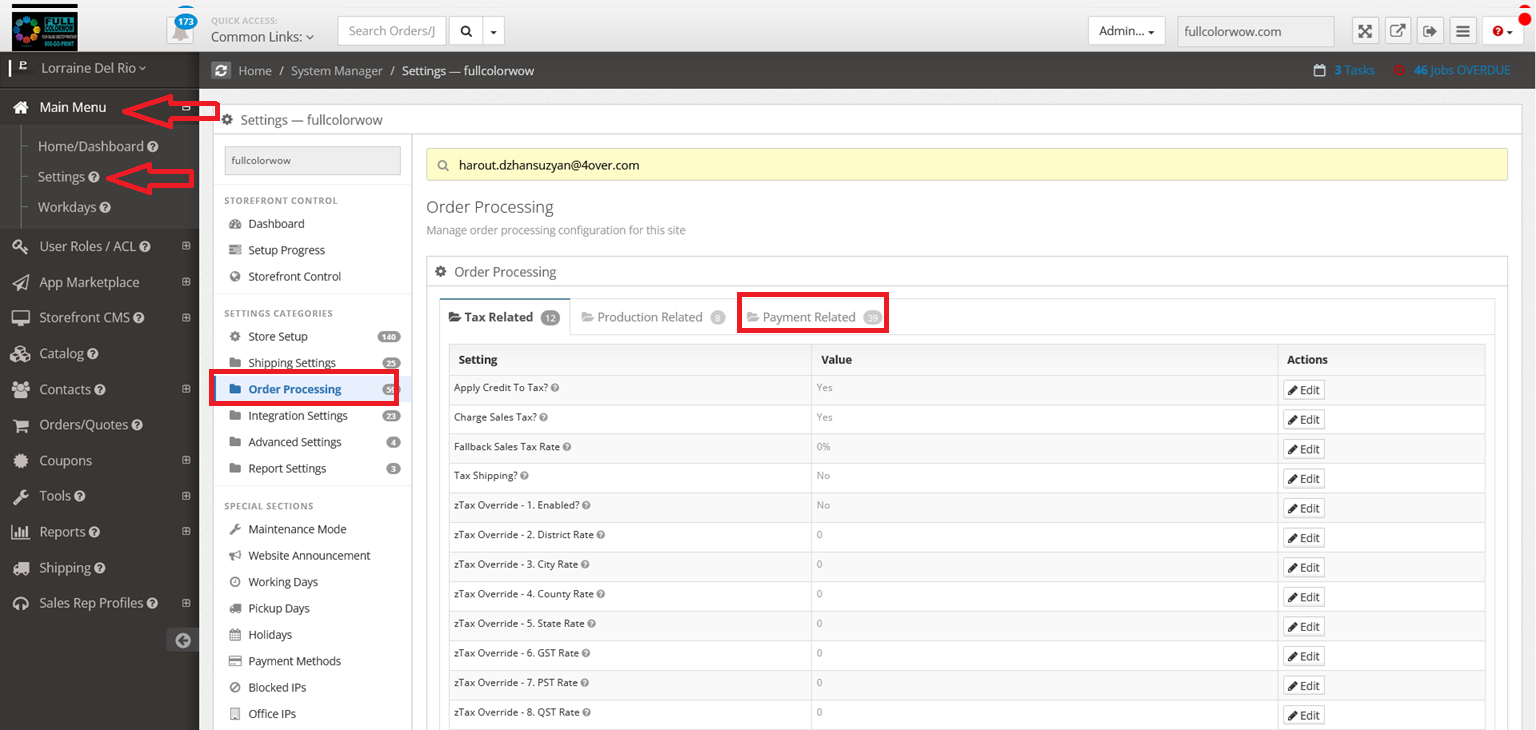
Go to Main Menu → Settings
-
Click on Order Processing → Select Payment Related
-
Click Available Payment Methods (link:
/settings/payment-methods.html).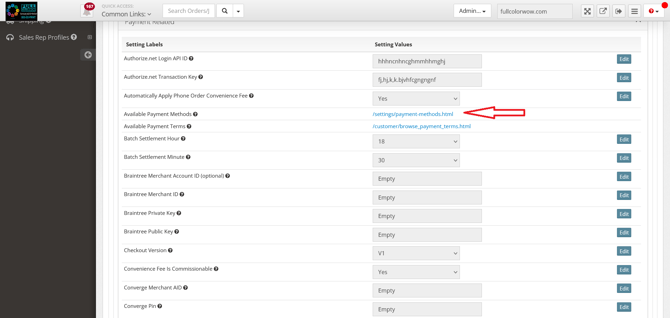
Step 2: Choose Available Payment Methods
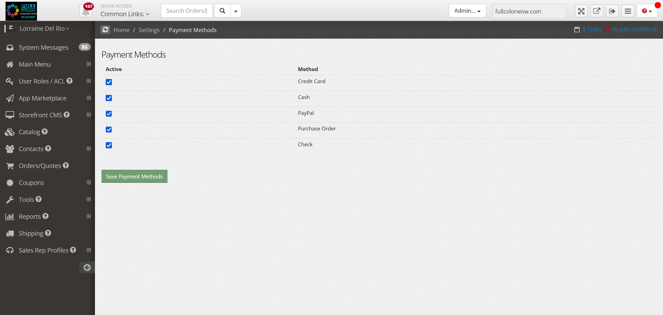
From this page, select which payment options will be available in your storefront:
-
Credit Card
-
Cash
-
PayPal
-
Purchase Order
-
Check
Save your selections before proceeding.
Step 3: Configure Your Payment Gateway
-
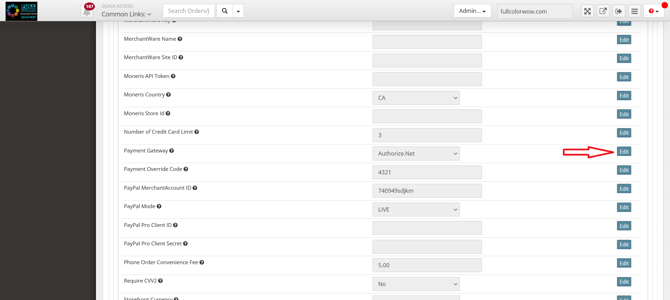
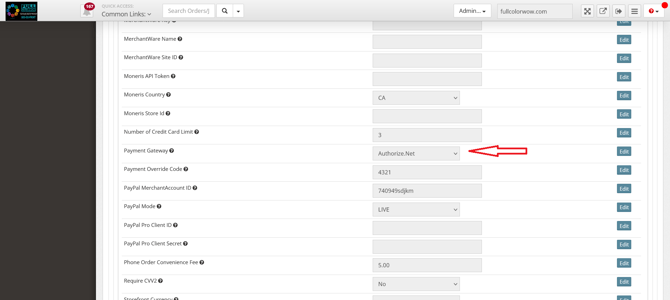
Locate the Payment Gateway section and click edit.
-
Select your merchant provider from the list of currently supported providers:
-
Authorize.net
-
MerchantWare
-
Moneris
-
Converge
-
Braintree
-
PayPal
-
Stripe
Step 4: Enter Merchant Credentials
After selecting your provider:
-
Locate the section specific to your selected merchant provider.
-
Enter the required credentials:
-
Merchant ID (may also be called Public Key)
-
Private Key
-
-
Save your changes.
If you’re unsure which credentials to use, contact your payment provider directly for assistance.