How Do I Upload My Logo and Favicon?
Note: If you do not see the changes on your webpage after you have uploaded your new files, you may need to clear the cache on your web browser for the changes to appear.
To update your logo or favicon:
-
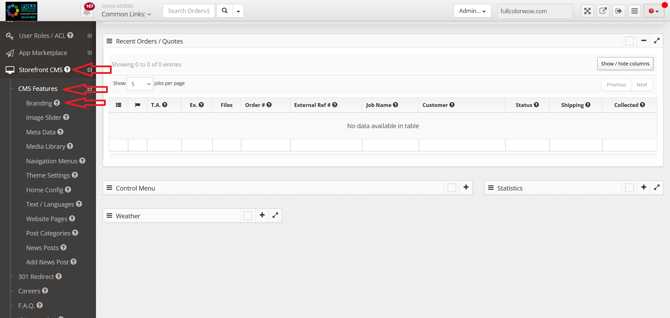
Navigate to Storefront CMS > CMS Features > Branding
-
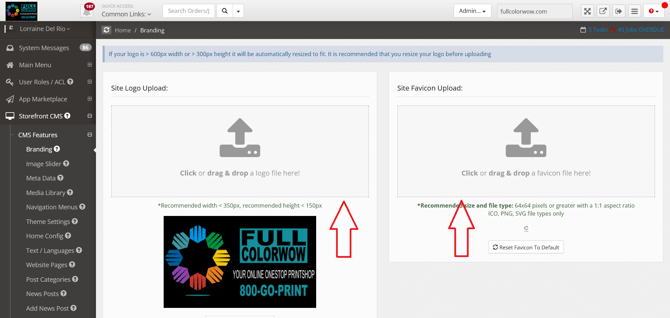
Upload your new Logo and/or Favicon files.
-
Save your changes.
Note: We recommend following the listed image specifications to ensure the best appearance on your storefront page.
How Do I Upload Images to My Image Slider?
To add or update images in your homepage image slider:
-
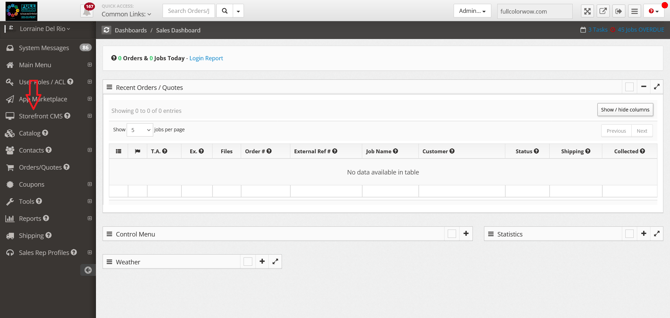
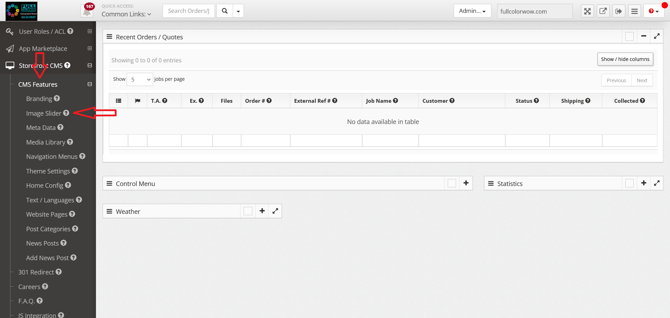
Go to Storefront CMS > CMS Features > Image Slider
-
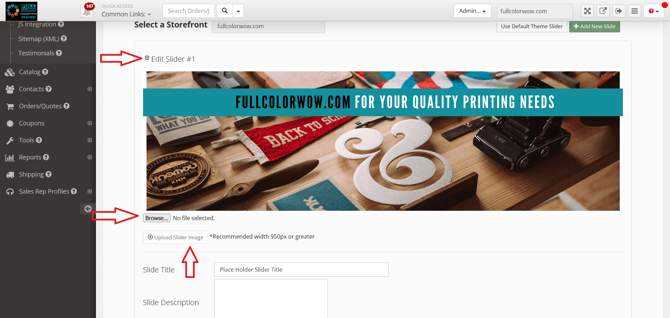
Click the + icon next to Edit Slider
-
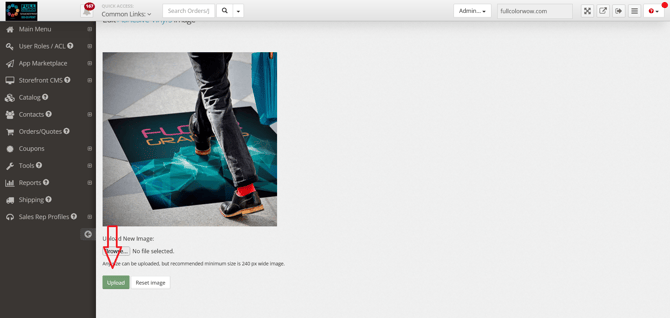
Select Browse
-
Choose your image and click Upload
-
Repeat these steps for each additional slider image
How Do I Change Category Icon Images?
To update a category icon image:
-
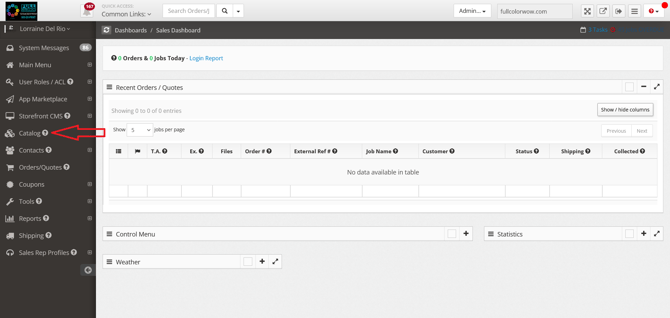
Go to Catalog
-
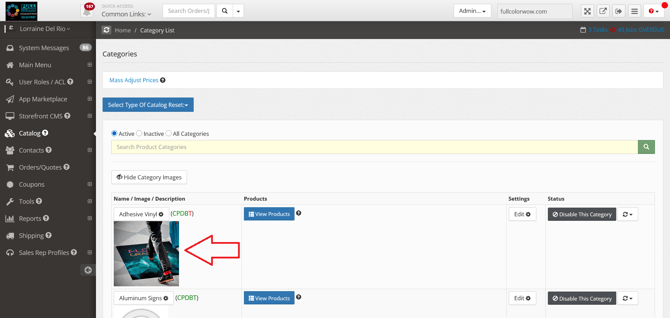
Click on the category image you would like to change
-
Example: To update the Business Cards image, click the Business Cards icon.
-
-
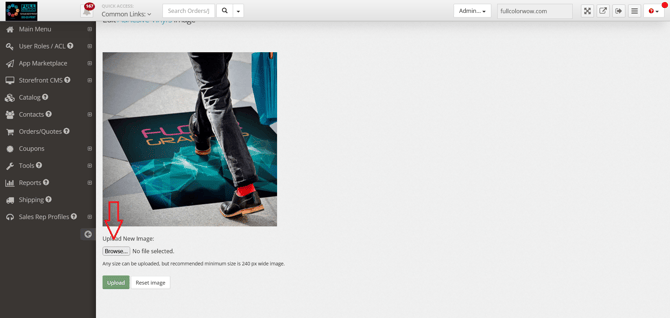
Click Browse
-
Select your new image
-
Click Upload